Doubao Say
13/13 cases passed
| Result | Case | Node screenshot | AI response / error |
|---|---|---|---|
| ✅ Passed | Cancel sign-in and retry | 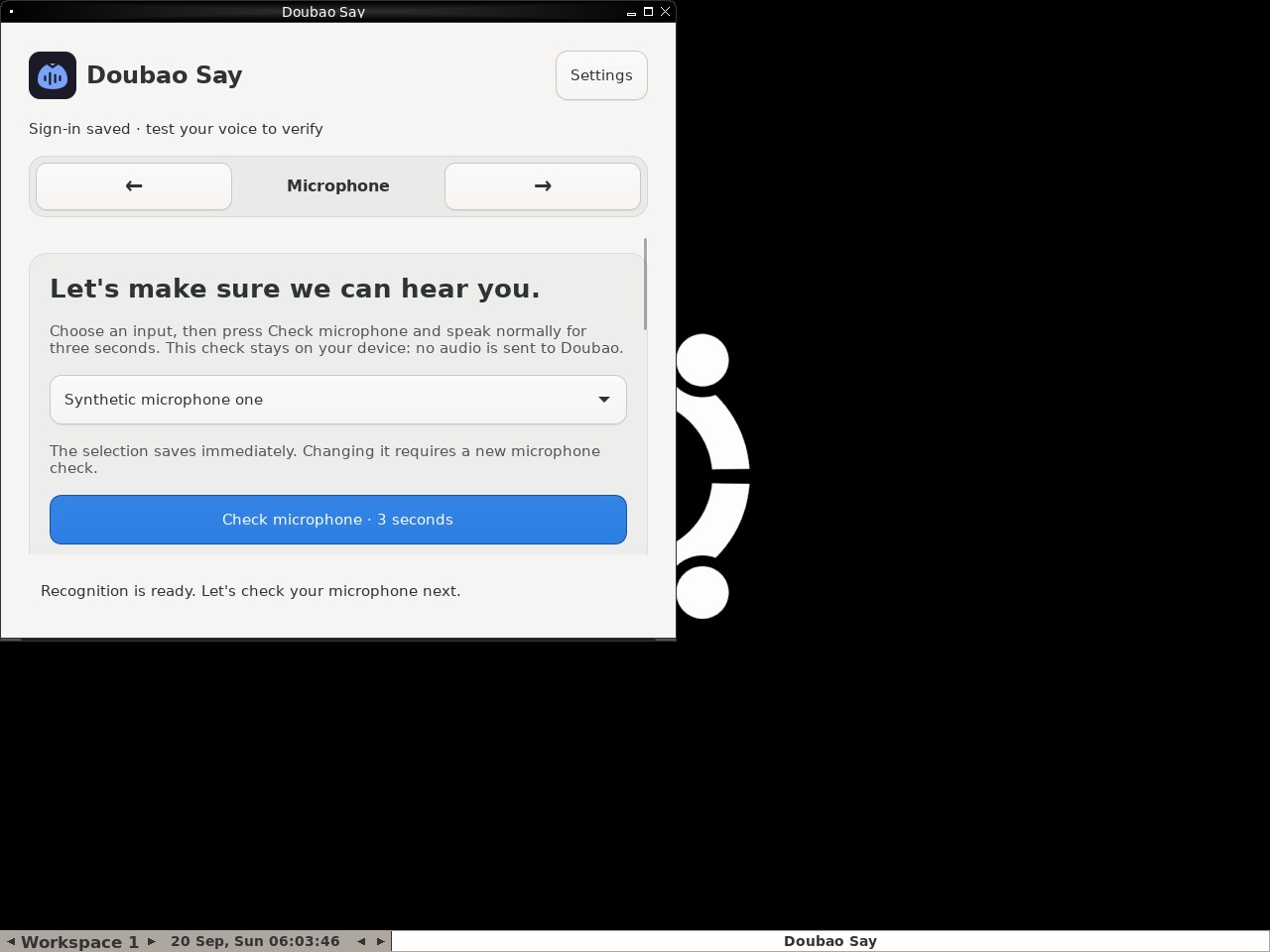 |
AI: The screenshot shows the "Doubao Say" application window is currently active and visible. The content within the window displays a section titled "Microphone" with the heading "Let's make sure we can hear you." and a button to "Check microphone". There is a status message at the top saying "Sign-in saved", which implies the sign-in process has completed. The interface is clearly on the microphone setup step, not a sign-in window. Therefore, the statement that the sign-in window closed (or the process finished) and the app advanced to the Microphone step is supported by the visual evidence. |
| ✅ Passed | Preserve signed-in account across backward navigation | 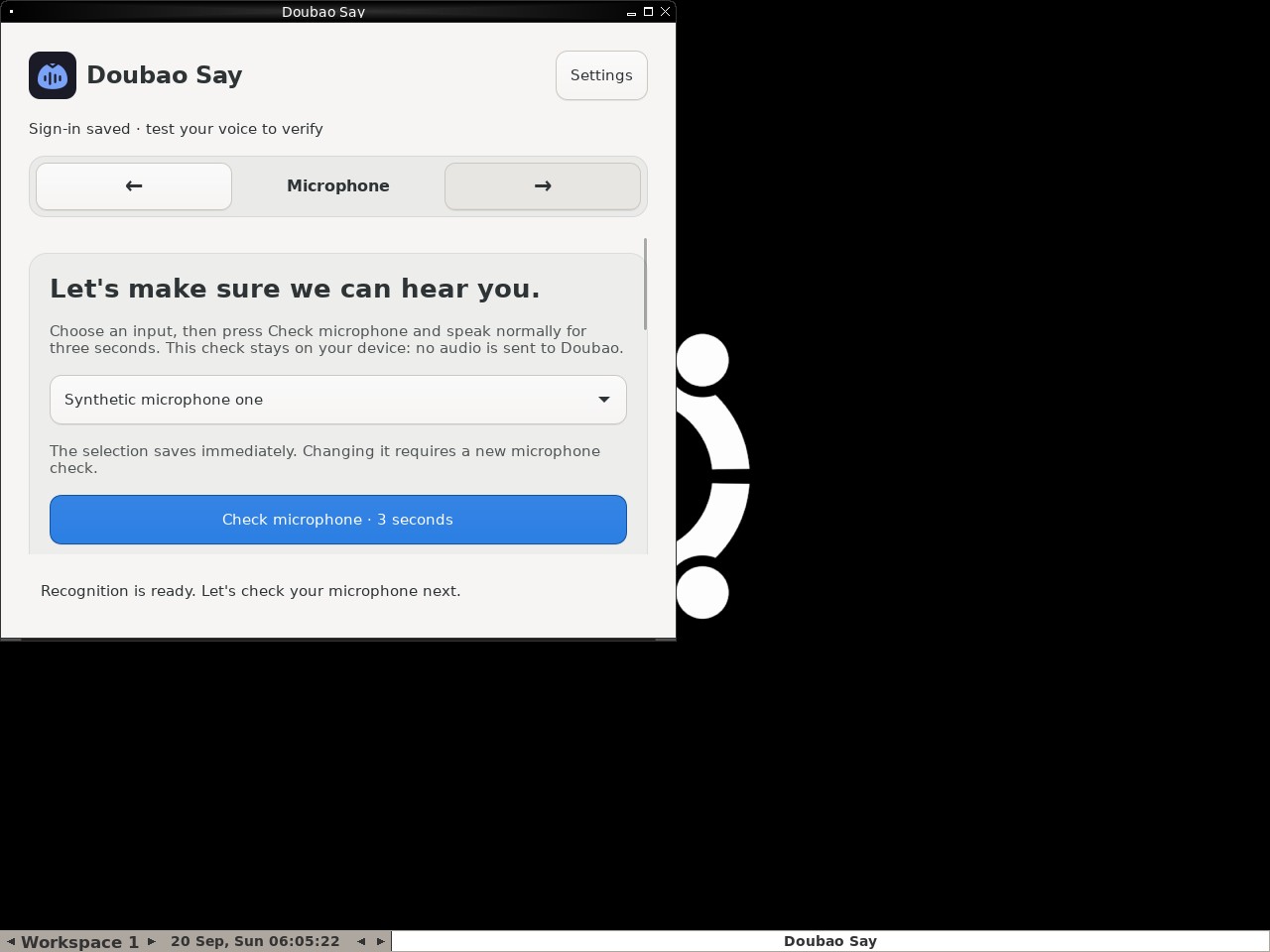 |
AI: The screenshot displays the "Doubao Say" application interface. The active tab is labeled "Microphone". The main content area prominently features the heading "Let's make sure we can hear you." Additionally, there is a status message at the top stating "Sign-in saved", and no separate sign-in window or modal is visible on the screen. Therefore, both conditions of the statement are met. |
| ✅ Passed | Require an enabled trigger and retain the replacement | 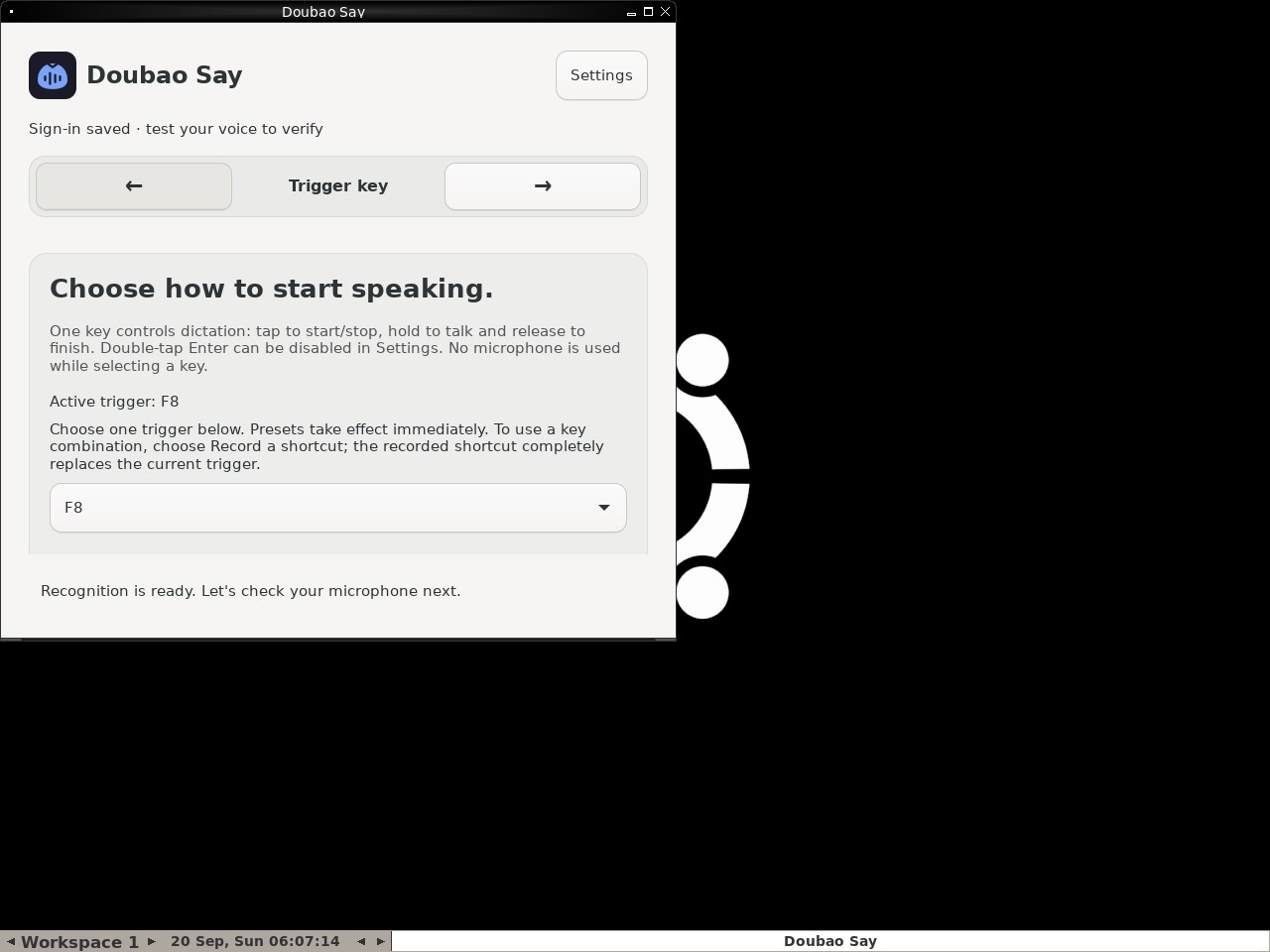 |
AI: The screenshot displays the "Trigger key" step of the setup process. Under the section "Choose how to start speaking.", there is a line of text that reads "Active trigger: F8". Additionally, below the instructional text, there is a dropdown menu which currently displays "F8" as the selected value. Both conditions in the statement are met. |
| ✅ Passed | Toggle polishing without losing configuration | 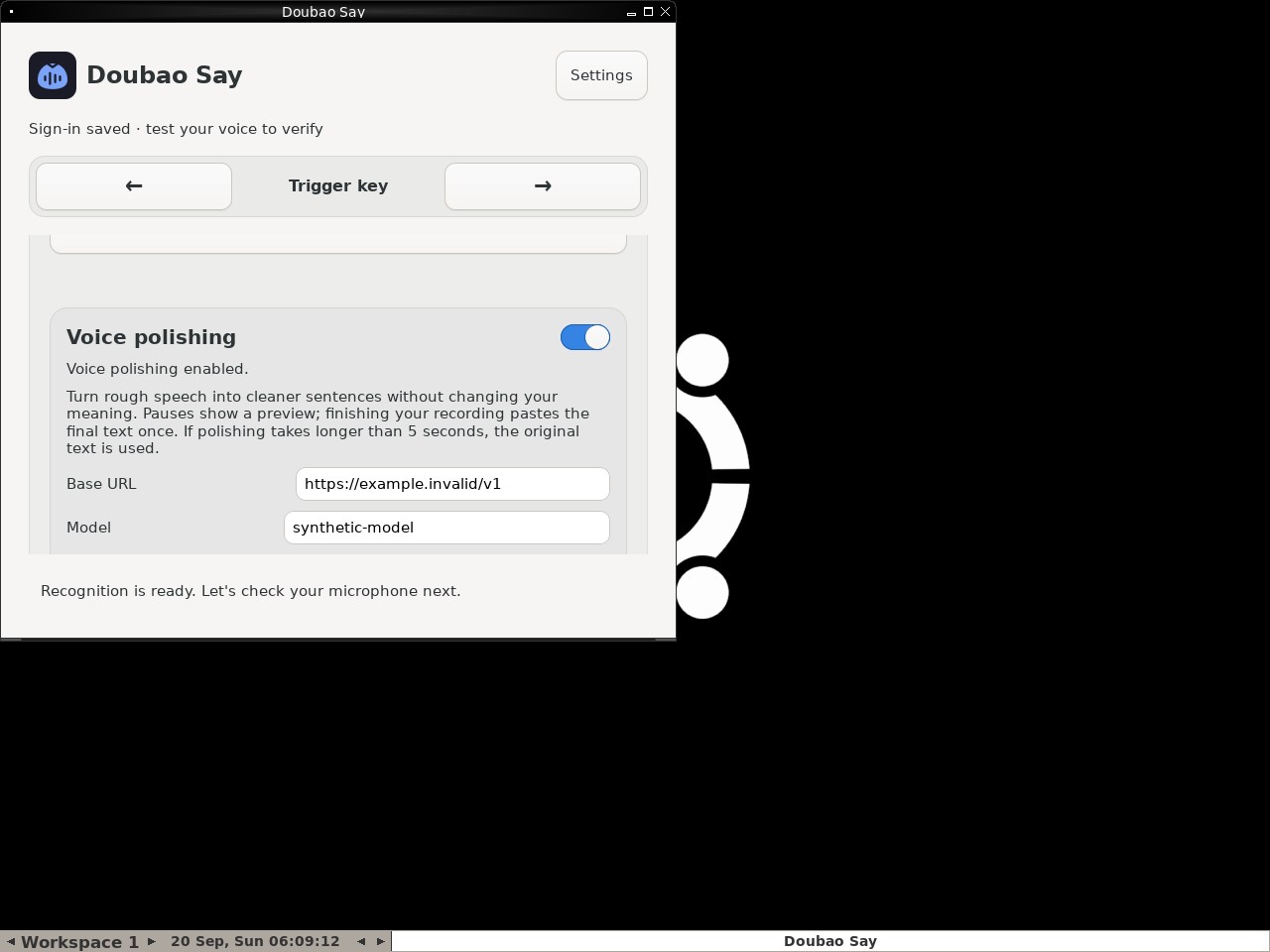 |
AI: Based on the screenshot, under the "Voice polishing" section, there is a field labeled "Model". The value inside the input box for this field is clearly visible as "synthetic-model". This matches the statement in the data demand exactly. |
| ✅ Passed | Recover from an endpoint failure | 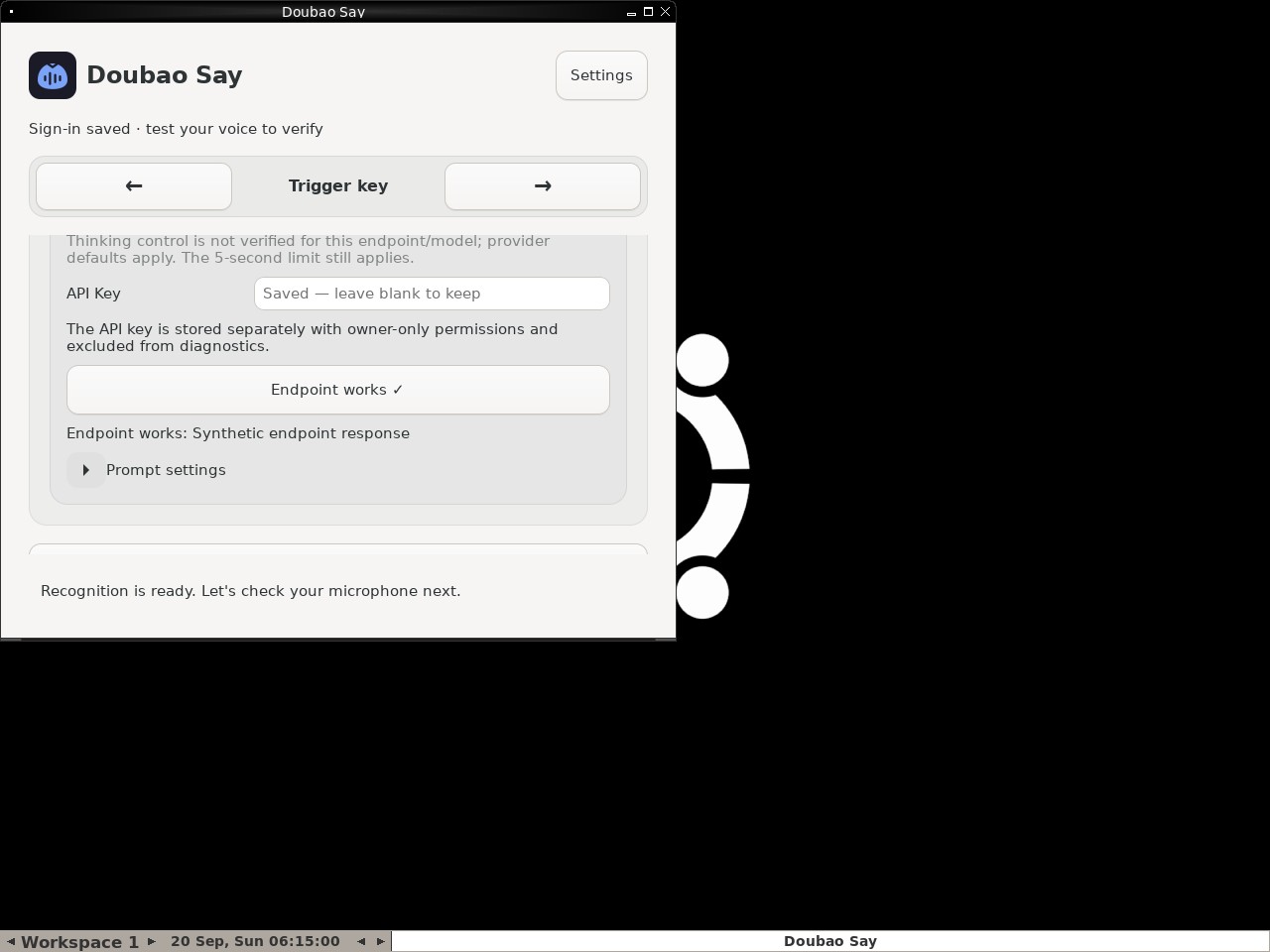 |
AI: Based on the screenshot, I can verify the following: 1. There is a text line that reads "Endpoint works: Synthetic endpoint response". 2. There is a button labeled "Endpoint works ✓", which appears enabled/active. 3. There is no visible error message stating "Synthetic endpoint unavailable". Therefore, all parts of the statement are true based on the visual evidence. |
| ✅ Passed | Microphone check gates setup completion | 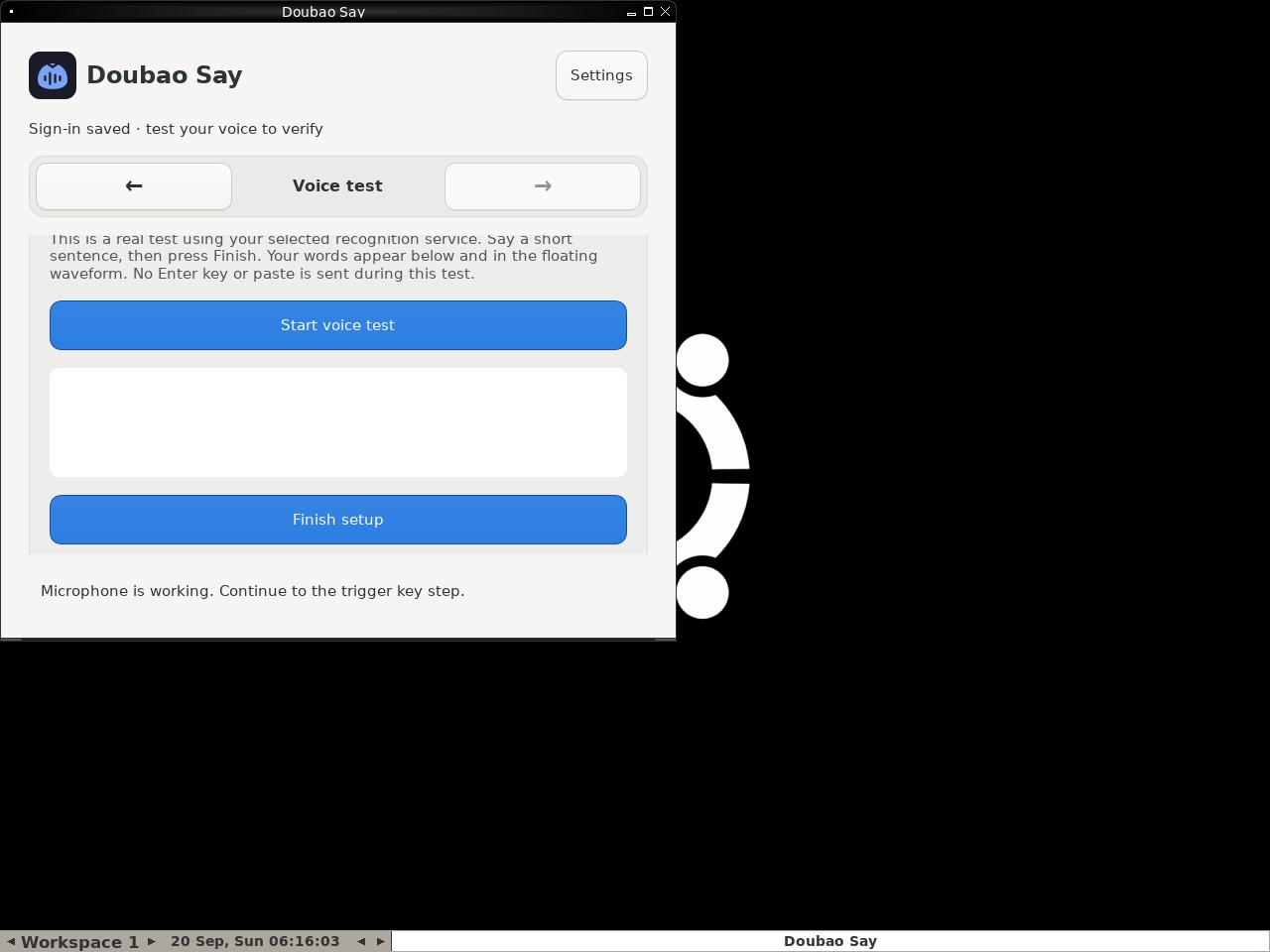 |
AI: The screenshot shows the "Doubao Say" application interface. At the bottom of the main content area, there is a blue button labeled "Finish setup". The button has a solid blue background and white text, indicating it is in an active, enabled state (disabled buttons are typically grayed out or have reduced opacity). Therefore, the statement that the Finish setup button is visibly enabled is true. |
| ✅ Passed | Complete and cancel a voice test safely | 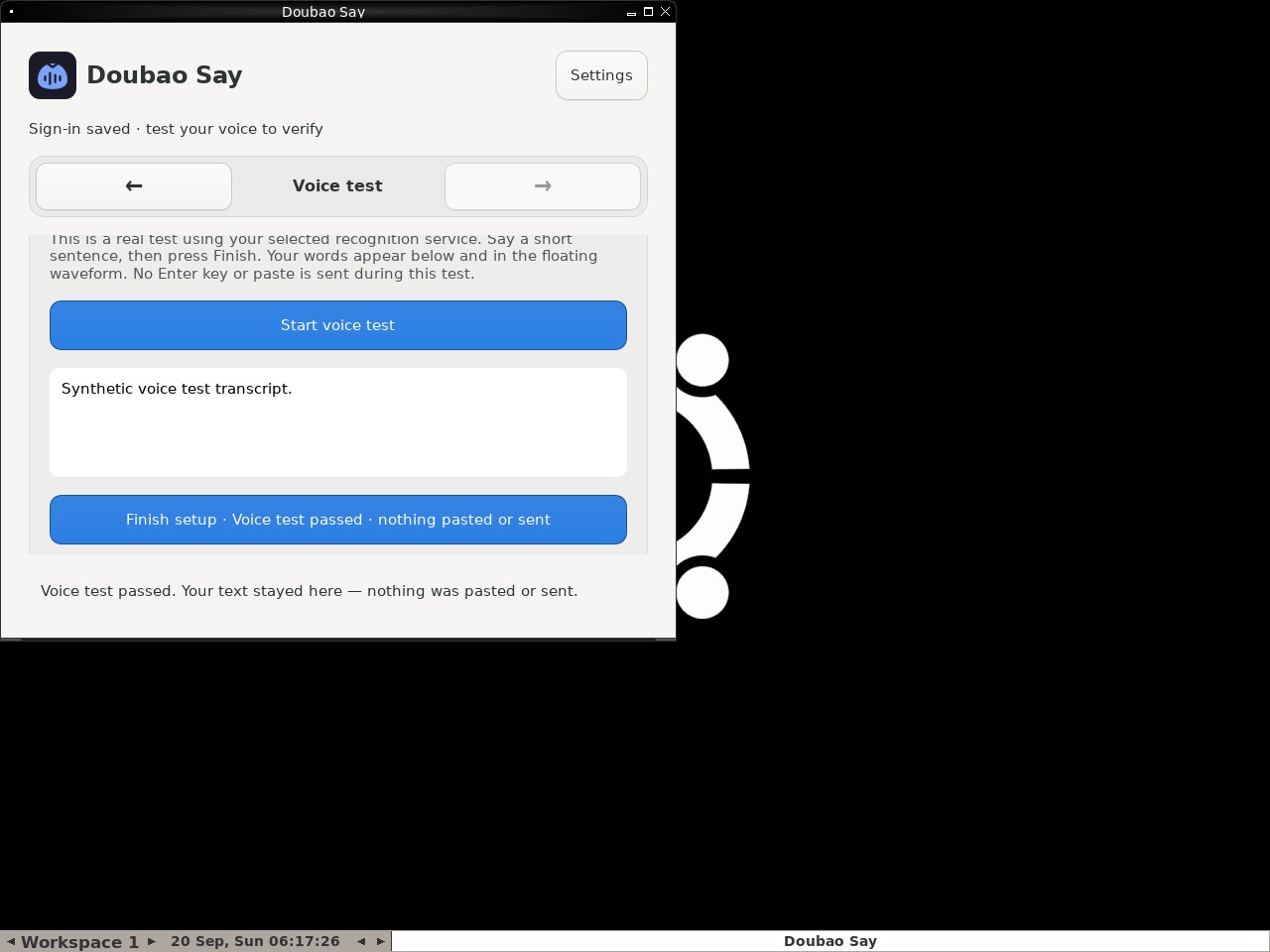 |
AI: The screenshot shows the "Doubao Say" application interface. At the bottom of the main content area, there is a large blue button that appears enabled (active color). The text on this button reads "Finish setup · Voice test passed · nothing pasted or sent". This matches the statement in the data demand exactly. |
| ✅ Passed | Switch to Volcengine and validate credentials | 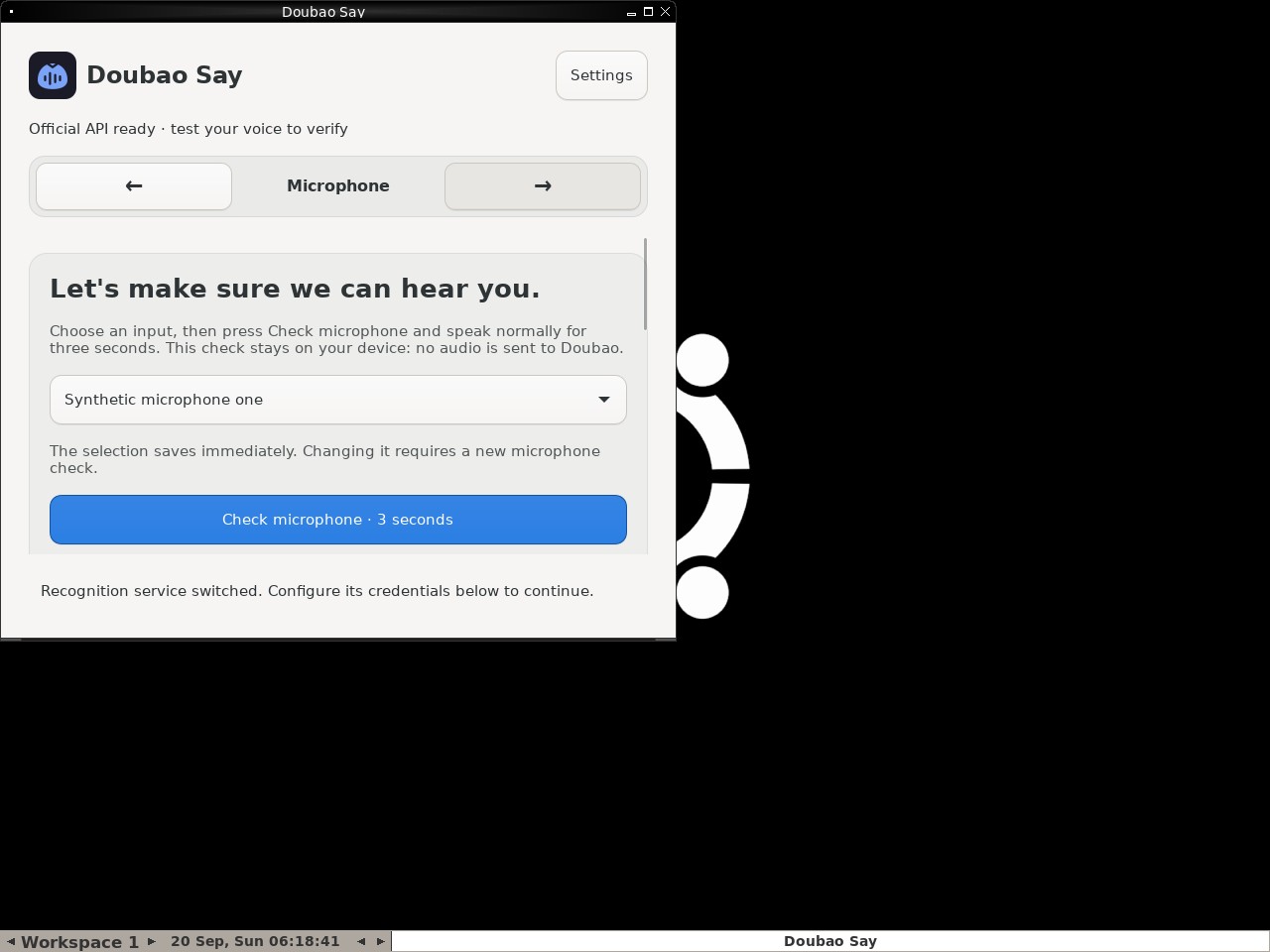 |
AI: The screenshot shows the "Doubao Say" application interface. In the navigation bar near the top, the word "Microphone" is clearly displayed between two arrow buttons, indicating the current step or tab. Below this navigation bar, there is a prominent heading that reads "Let's make sure we can hear you." Both conditions specified in the statement are present and visible in the image. |
| ✅ Passed | Changing microphone requires another check | 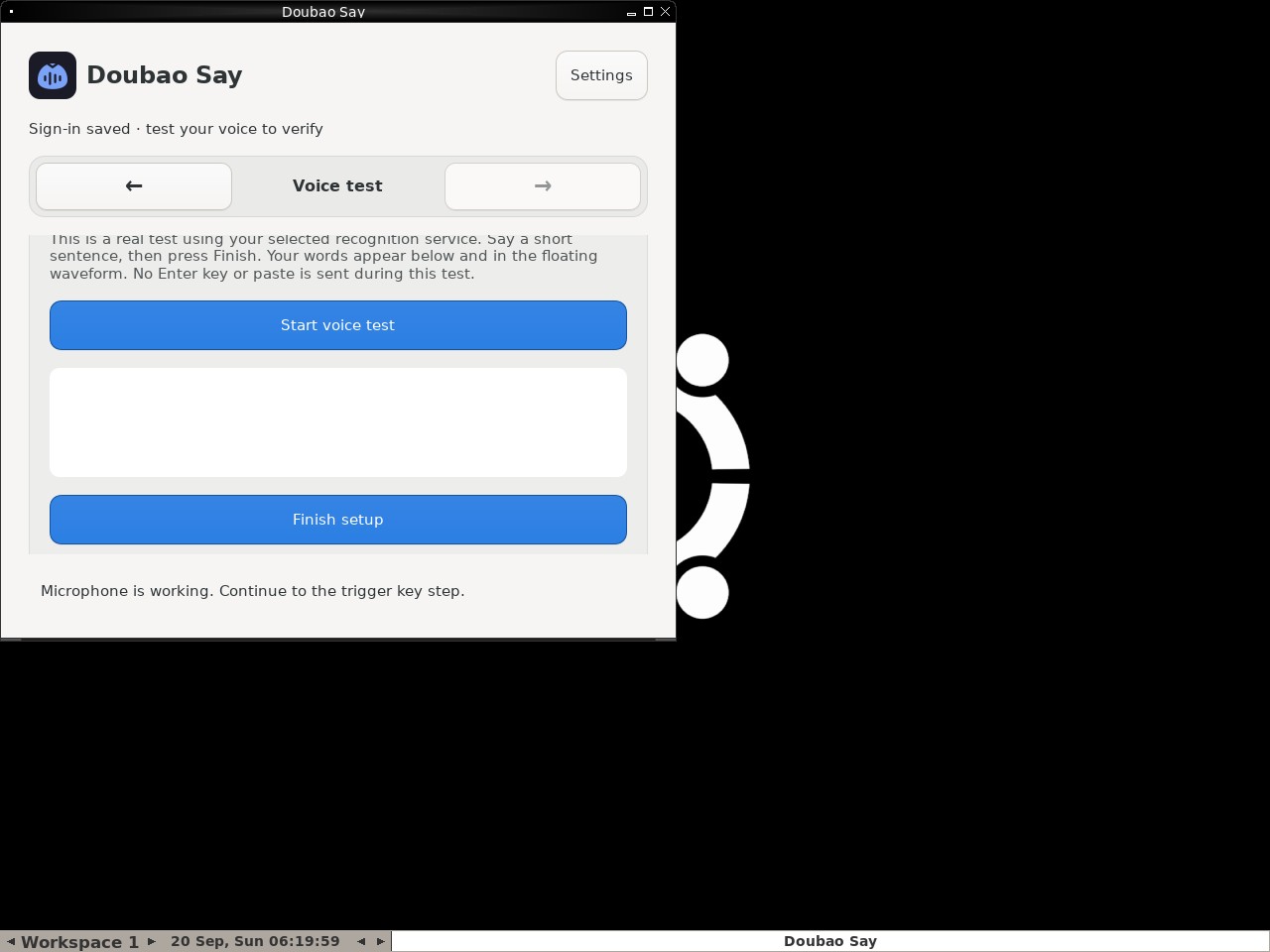 |
AI: The screenshot shows the "Doubao Say" application interface. At the bottom of the main content area, there is a blue button labeled "Finish setup". The button has a solid blue background and white text, which contrasts with the disabled state (typically grayed out) seen in the navigation arrows above it. This visual styling indicates that the button is active and enabled. |
| ✅ Passed | Capture and retain a custom trigger shortcut | 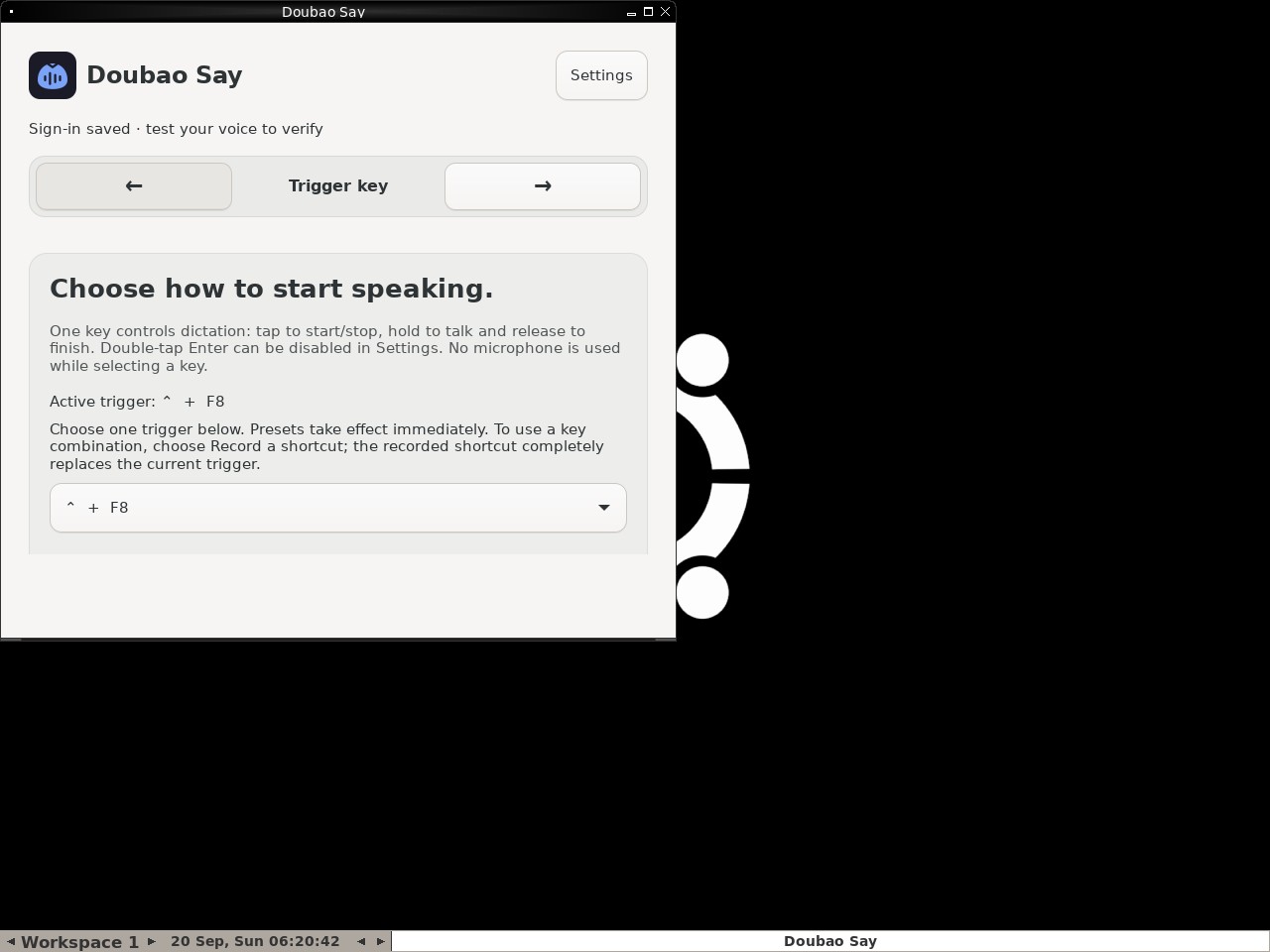 |
AI: The screenshot displays the "Trigger key" page of the Doubao Say application. Under the section "Choose how to start speaking," there is a line stating "Active trigger: ^ + F8". Additionally, the dropdown menu below it shows "^ + F8" as the selected value. The symbol "^" corresponds to the Control key (often represented as ⌃ on Mac keyboards or Ctrl on Windows), confirming that the custom shortcut is active and selected. |
| ✅ Passed | Complete Doubao Say onboarding on a real desktop | 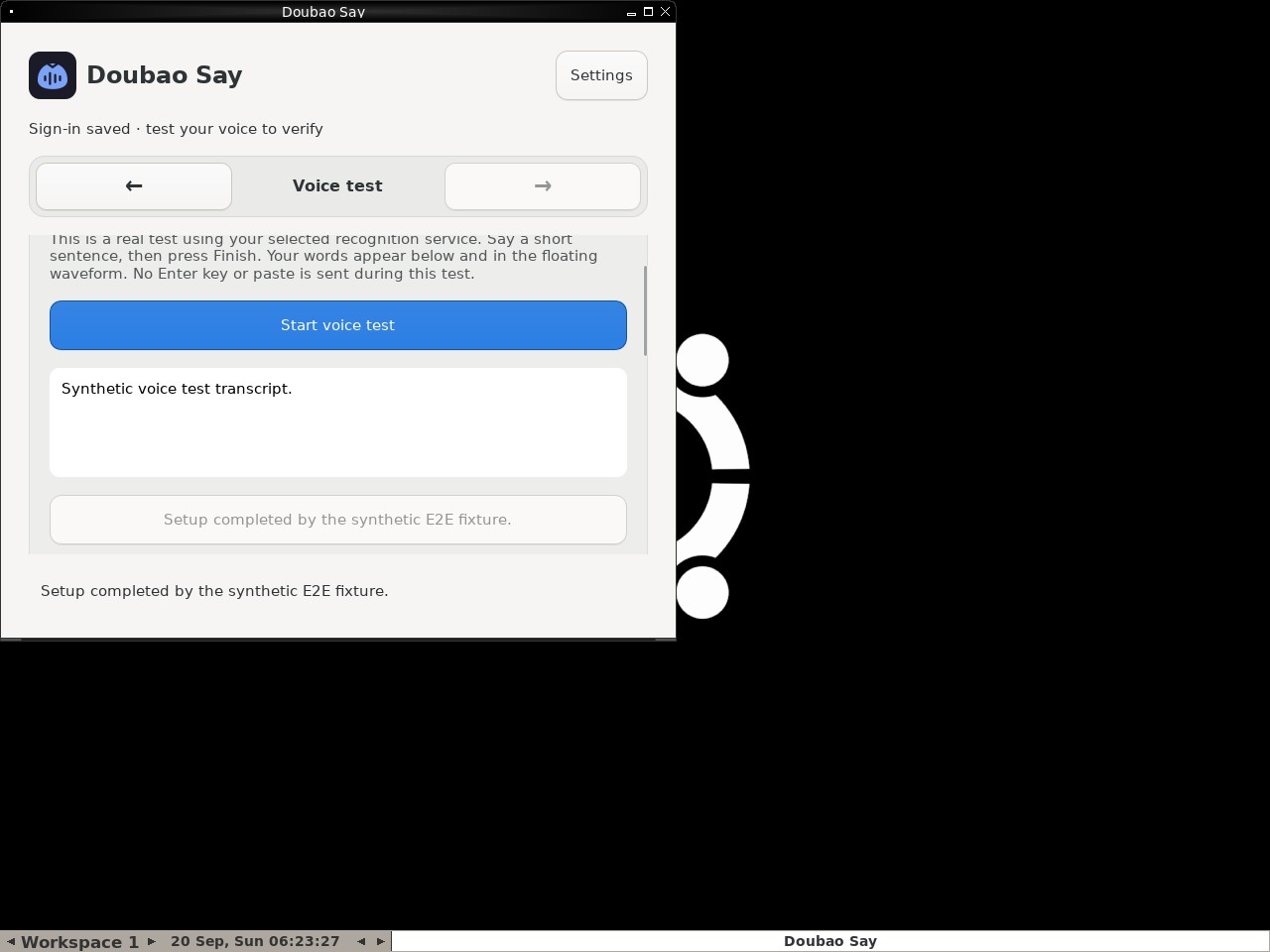 |
AI: The screenshot shows the "Doubao Say" application interface. At the bottom of the voice test section, there is a button-like element that is grayed out (disabled appearance) and contains the text "Setup completed by the synthetic E2E fixture.". This matches the description in the statement regarding the button's status and text content. |
| ✅ Passed | Deliver one synthetic dictation to the focused target | 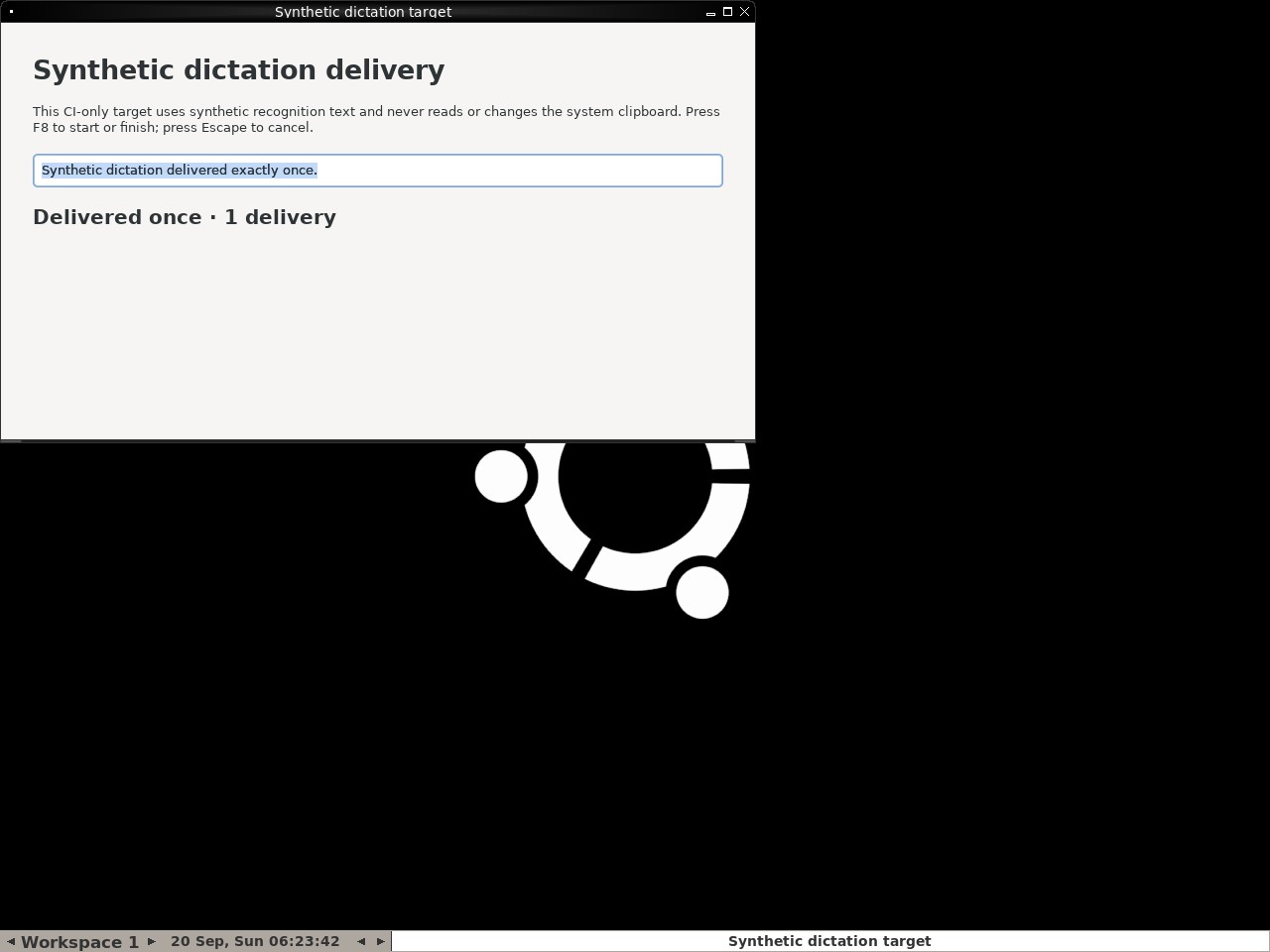 |
AI: Based on the screenshot, there is no overlay obscuring the main content. The text input field clearly contains the text "Synthetic dictation delivered exactly once." (highlighted). Below the input field, the status text reads "Delivered once · 1 delivery". All conditions in the statement are met. |
| ✅ Passed | Cancel synthetic dictation without delivering text | 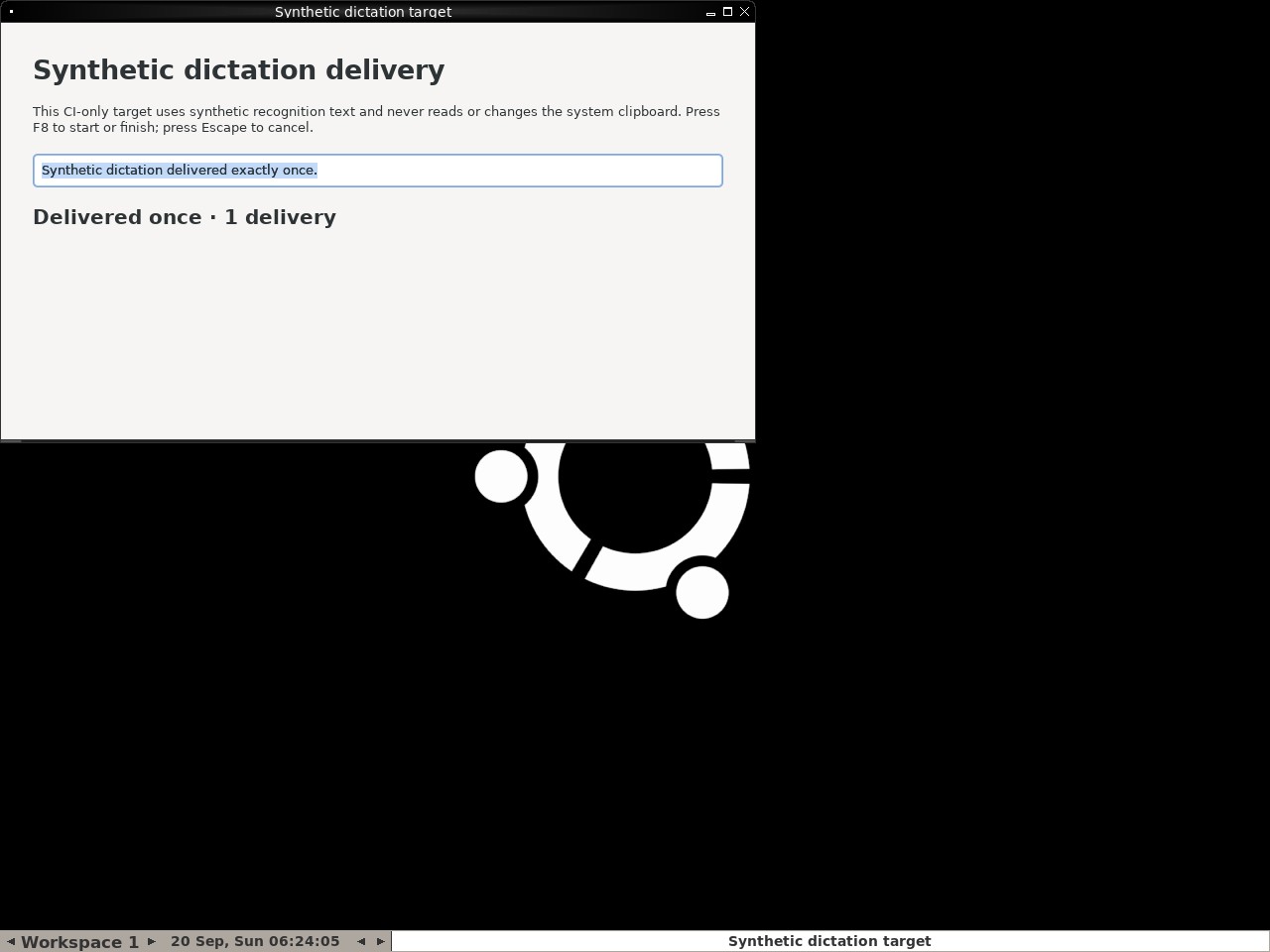 |
AI: The screenshot shows a window titled "Synthetic dictation delivery". Inside, there is a text input field containing the sentence "Synthetic dictation delivered exactly once." Below this field, a status message reads "Delivered once · 1 delivery". This confirms that a synthetic sentence was delivered exactly once and the status explicitly reports "1 delivery", satisfying the condition in the statement. |
Polishing overlay report
1/1 cases passed
| Result | Case | Node screenshot | AI response / error |
|---|---|---|---|
| ✅ Passed | Polishing status stays separate from synthetic transcript | 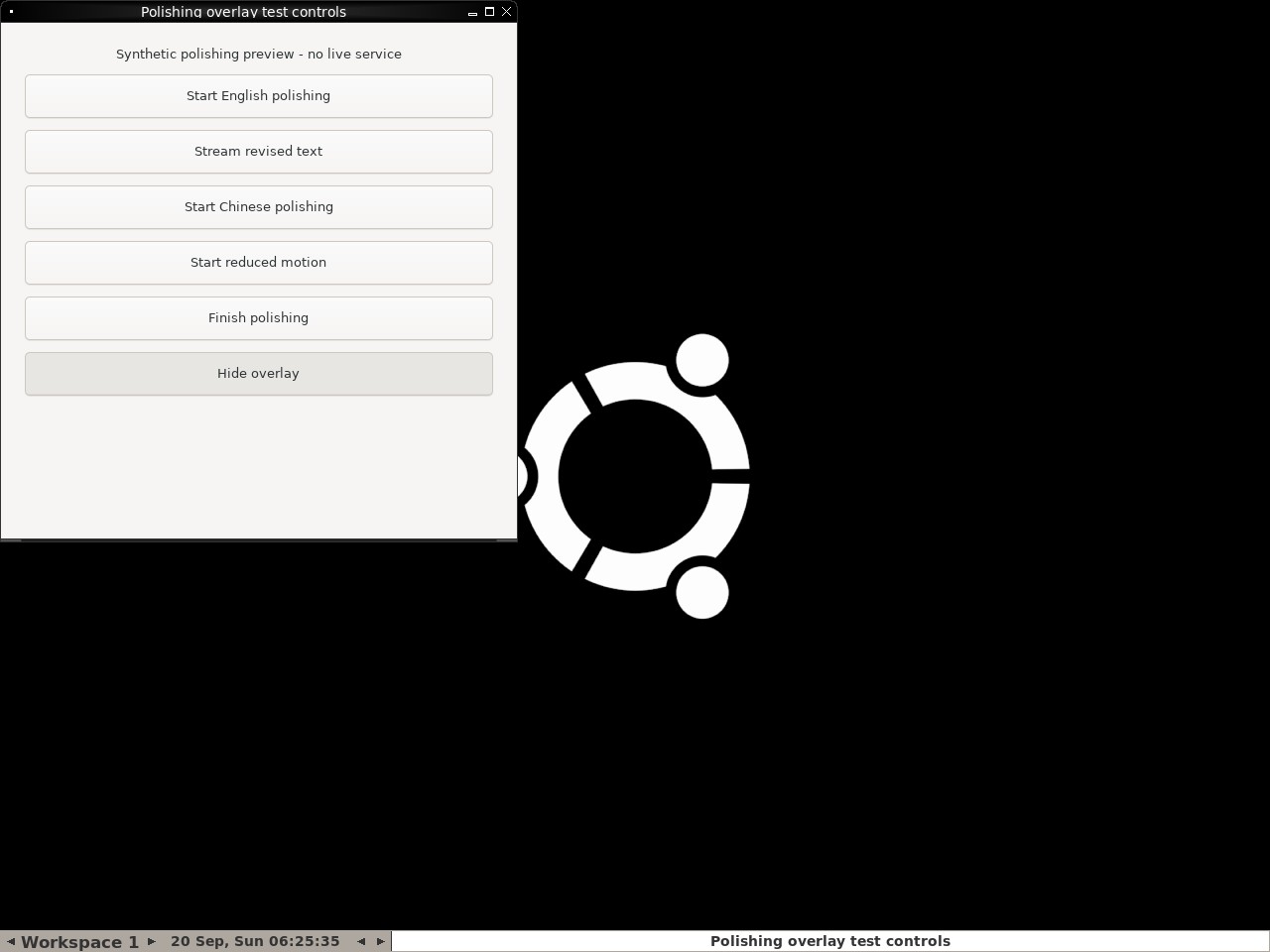 |
AI: The screenshot shows the "Polishing overlay test controls" window clearly visible in the top-left corner. The background is black with a white Ubuntu logo, and there is no dark transcript overlay text or box visible on the screen. Therefore, the statement that the dark transcript overlay is gone and the test controls window remains visible is accurate. |