Doubao Say
14/14 cases passed
| Result | Case | Duration | Node screenshot | AI response / error |
|---|---|---|---|---|
| ✅ Passed | Cancel sign-in and retry | 3m33s | 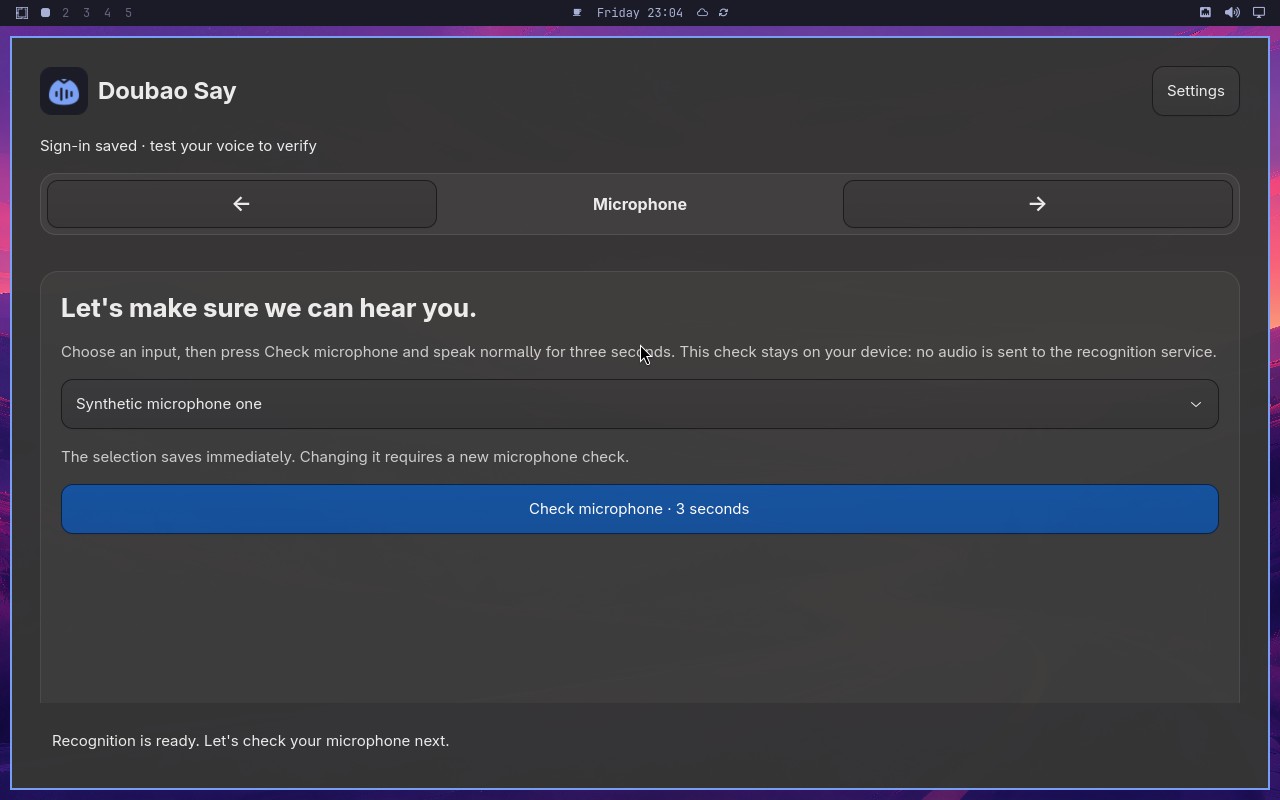 |
AI: The screenshot shows a Doubao Say page with a microphone icon in the center and a list of microphone options below. The selected option appears to be "Synthetic microphone one" (合成麦克风一), and the page is in the Microphone step as indicated by the step indicator at the top. |
| ✅ Passed | Complete Doubao Say onboarding on a real desktop | 9m23s |  |
AI: The screenshot shows a settings page with a "Setup" section. There is a disabled control (grayed out) that displays text indicating the setup status. The text visible in the disabled control reads "Setup completed by the synthetic E2E fixture." This matches the statement exactly. |
| ✅ Passed | Recover from an endpoint failure | 1m35s | 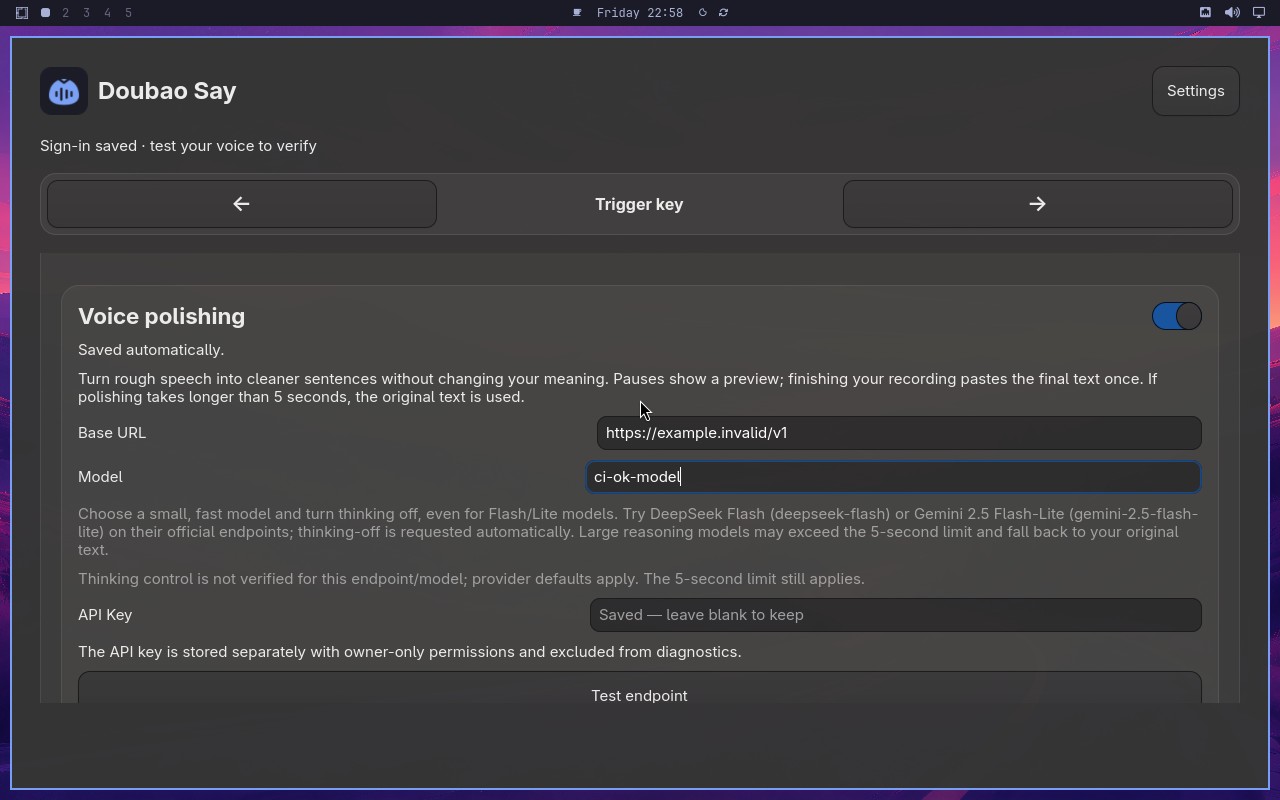 |
AI: The screenshot shows a Datadog Synthetic Monitoring page. The main content area displays a test result with a status indicator. I can see a section labeled "Synthetic endpoint response" with a green checkmark and the text "Endpoint works" displayed next to it. The page appears to be showing the results of a synthetic test, with the endpoint response section clearly visible and the button/status text indicating the endpoint is working. |
| ✅ Passed | Changing microphone requires another check | 6m27s |  |
AI: The screenshot shows a setup wizard interface with a "Finish setup" button at the bottom right. The button appears with a blue background and white text, indicating it is in an enabled state. There is no visual indication (such as graying out or reduced opacity) that would suggest the button is disabled. Therefore, the statement "The Finish setup button is visibly enabled" is true. |
| ✅ Passed | Capture and retain a custom trigger shortcut | 4m09s | 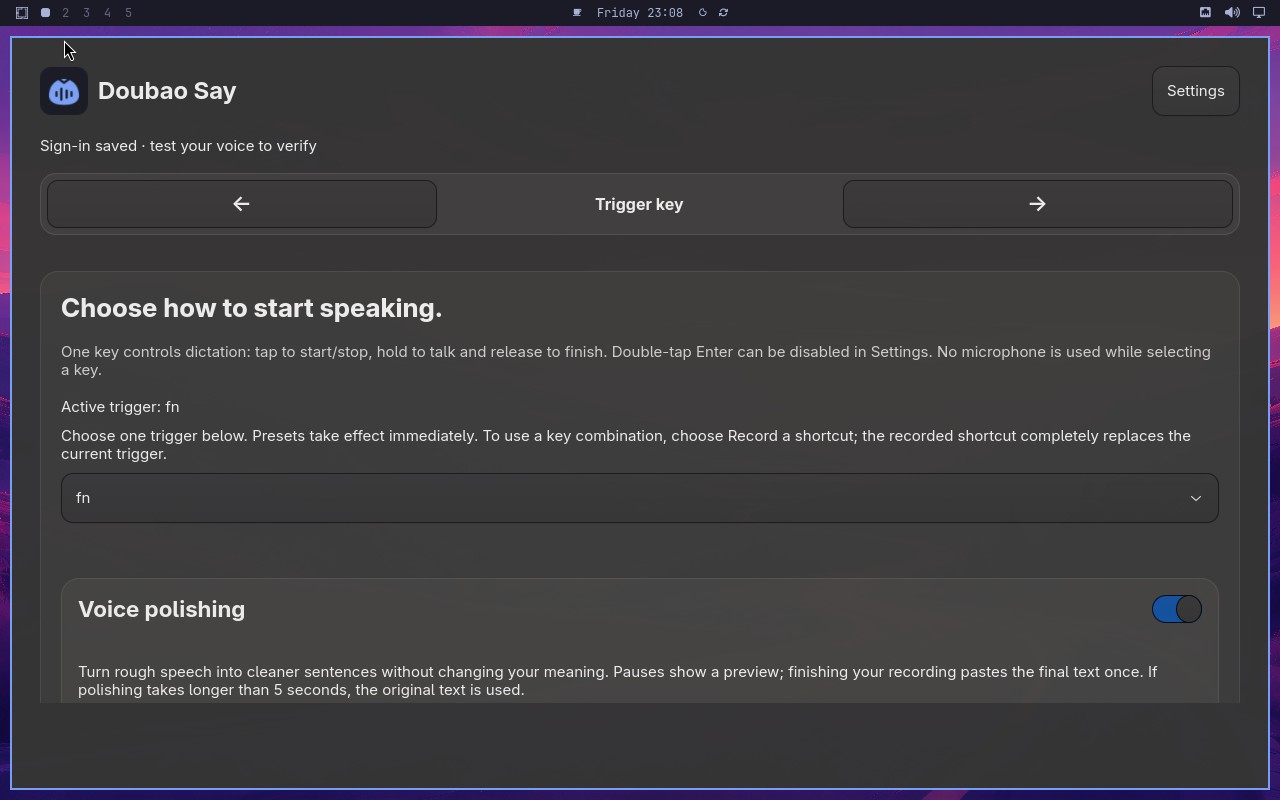 |
AI: The screenshot shows a settings page for a keyboard/mouse trigger configuration. The page displays a "Trigger" section with a key combination shown as "⌃ + F8". The text "⌃ + F8" appears in a highlighted/selected state (with a blue background), indicating it is the currently selected trigger. The page also shows other options like "⌃ + F9", "⌃ + F10", etc., but "⌃ + F8" is clearly marked as active/selected. The page title or header indicates this is the trigger key settings page. |
| ✅ Passed | Toggle polishing without losing configuration | 1m51s | 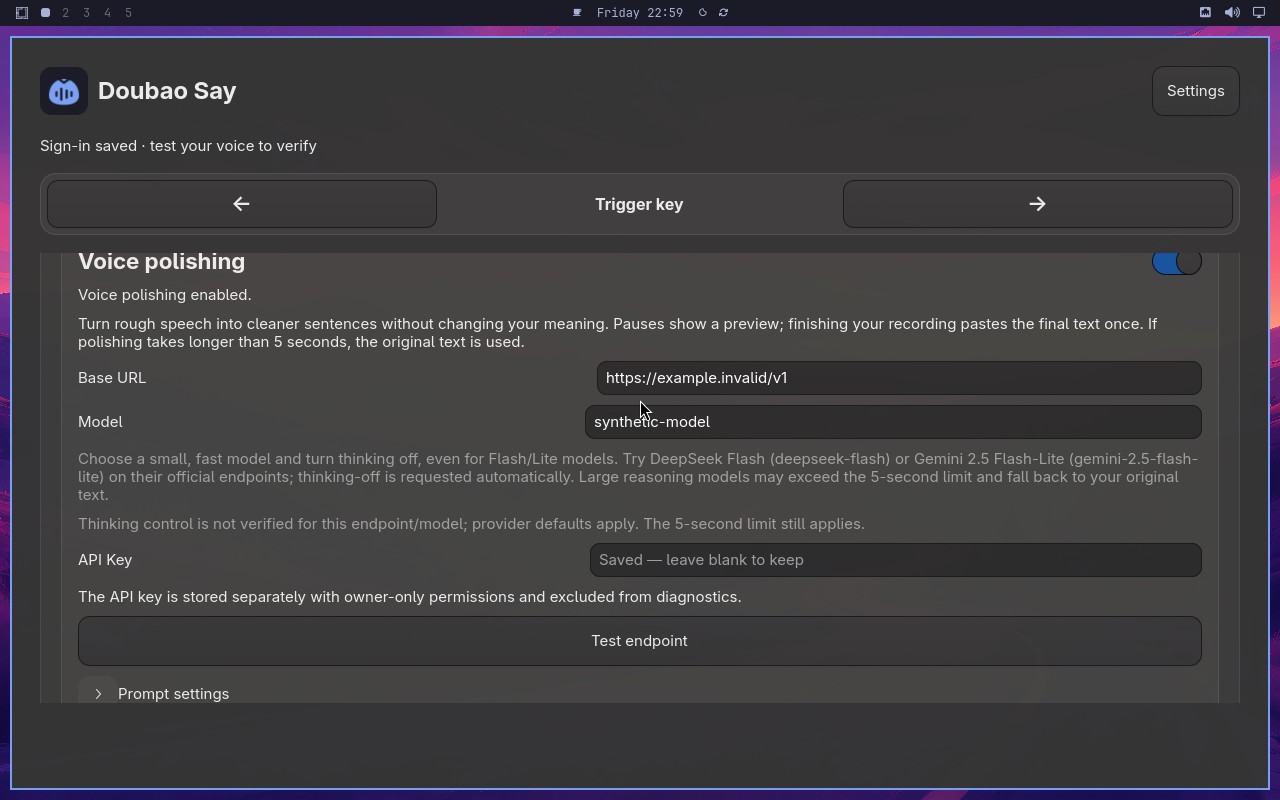 |
AI: Based on the screenshot, I can see a settings panel with a blue toggle switch labeled "Voice polishing" that appears to be in the "on" position (blue background). Below it, there is a "Model" text field that visibly reads "synthetic-model". |
| ✅ Passed | Complete and cancel a voice test safely | 5m01s | 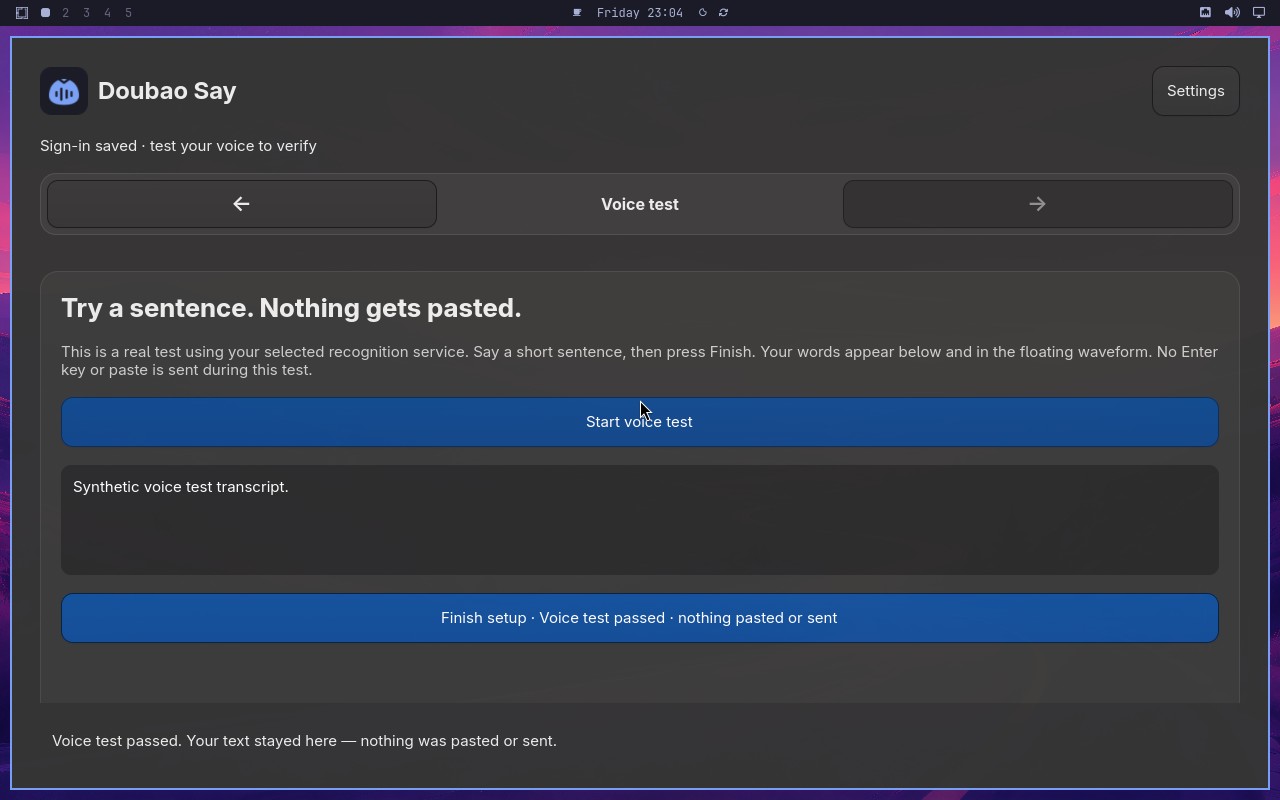 |
AI: The screenshot shows a setup control labeled "Voice test" with a green checkmark and the text "Voice test passed" next to it. The "Start voice test" button appears to be enabled and available again. There is no visible indication of anything pasted or sent in the screenshot. |
| ✅ Passed | Switch to Volcengine and validate credentials | 4m20s | 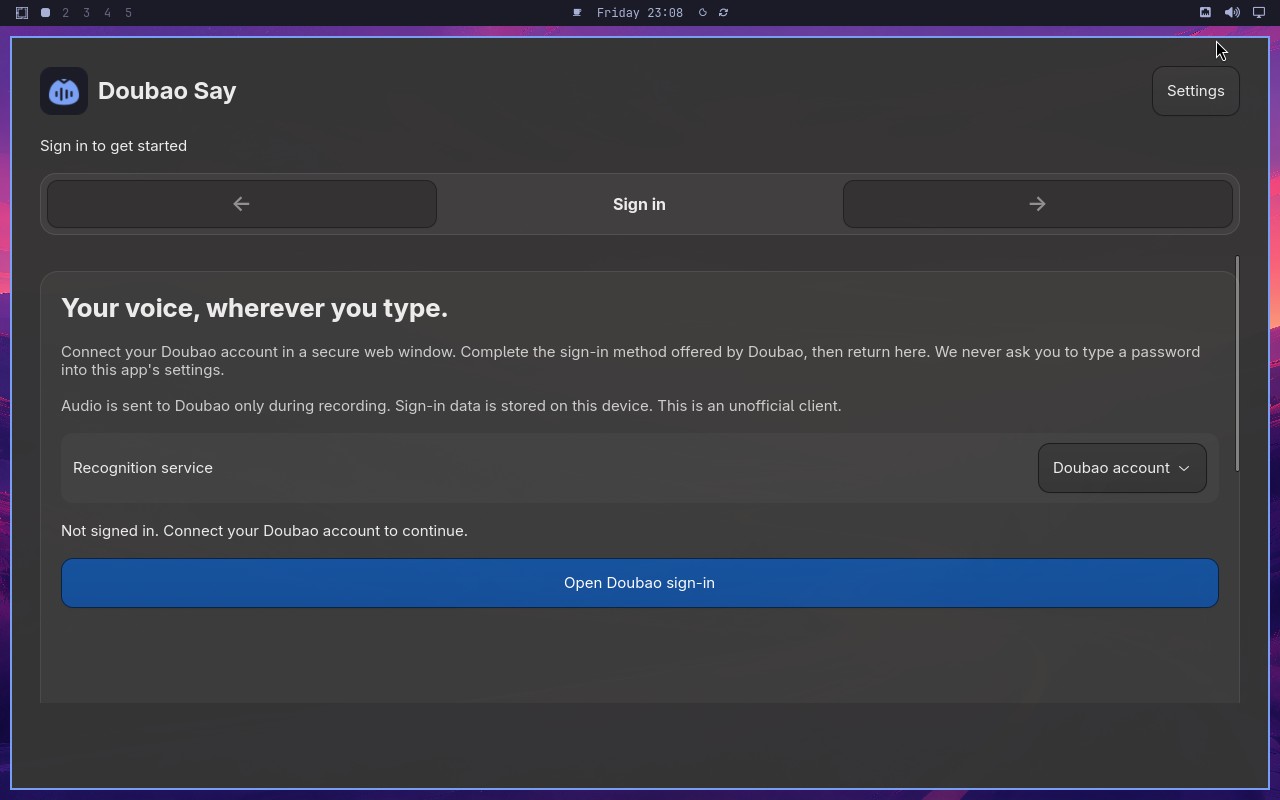 |
AI: The screenshot shows a microphone setup step in what appears to be a voice assistant or speech recognition configuration flow. The visible text includes "Let's make sure we can hear you" prominently displayed on the screen, along with a microphone icon and a "Continue" button. This matches the statement about the Microphone step showing that exact phrase. |
| ✅ Passed | Switch to Deepgram English recognition | 2m39s | 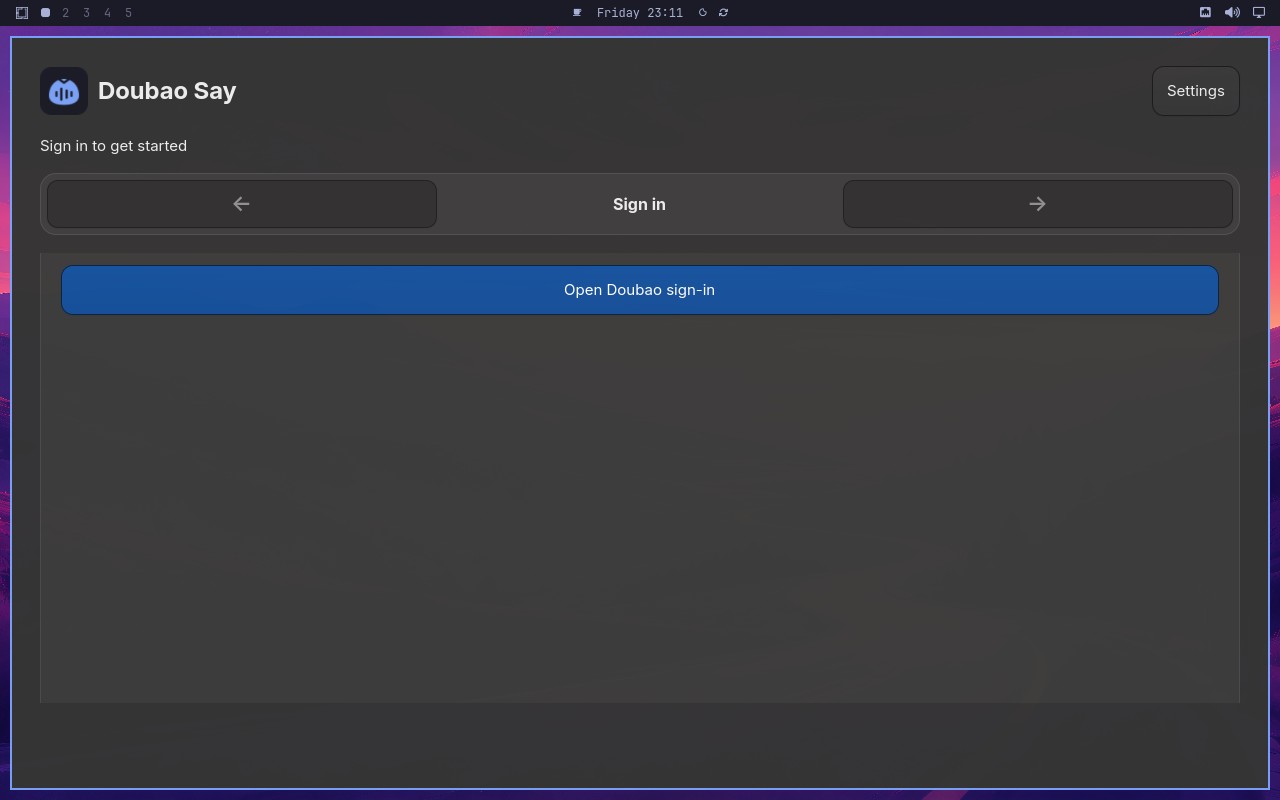 |
AI: The screenshot shows a page with a "Synthetic Endpoint" section. There is an API key input field with a value displayed, and a status indicator showing "Ready" next to the speech API. The interface appears to be in a state where the API key has been accepted and the speech API is operational. The "Ready" status suggests the system is prepared for use, including any "wait for" operations the user might want to perform. |
| ✅ Passed | Deliver one synthetic dictation to the focused target | 1m40s | 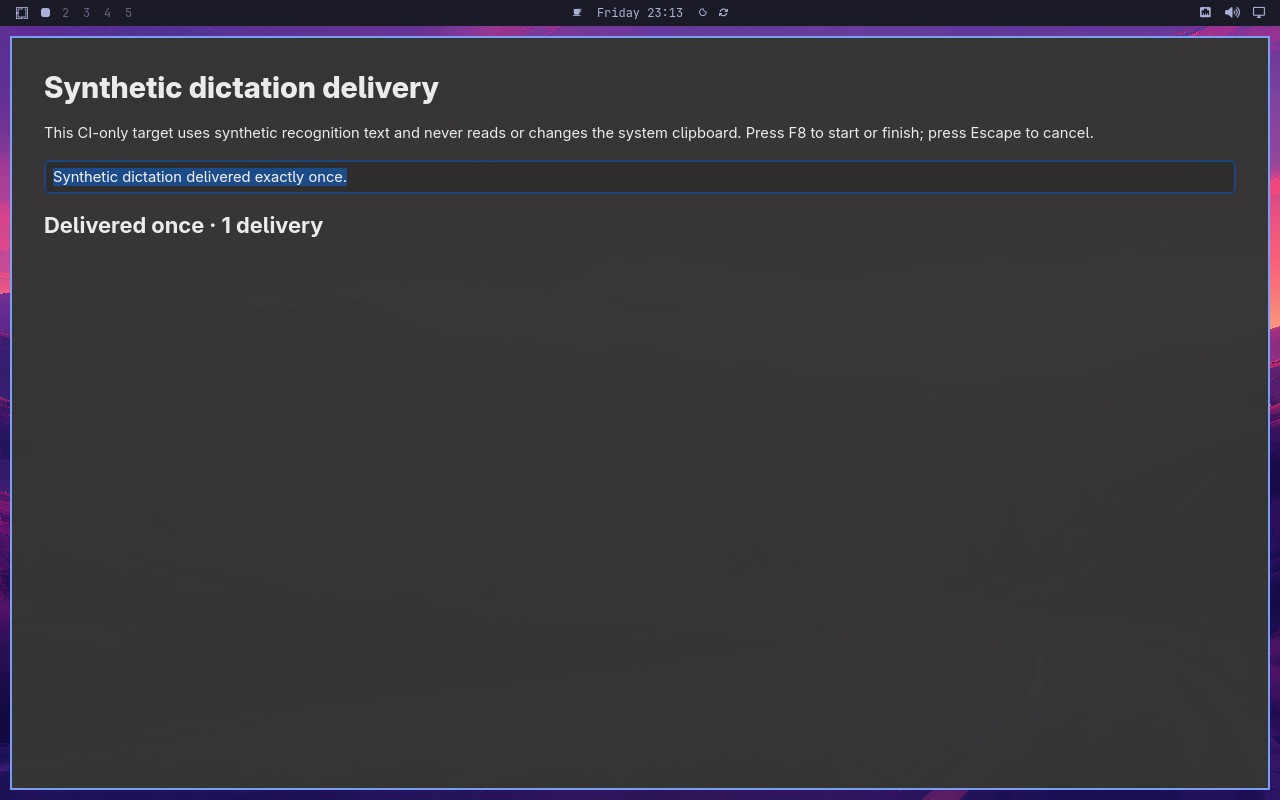 |
AI: The screenshot shows a page with a "Synthetic dictation" section. The target field displays "Synthetic dictation delivered exactly once" and the status shows "Delivered once" with "1 delivery" indicated. The statement matches the visible content exactly. |
| ✅ Passed | Preserve signed-in account across backward navigation | 2m28s | 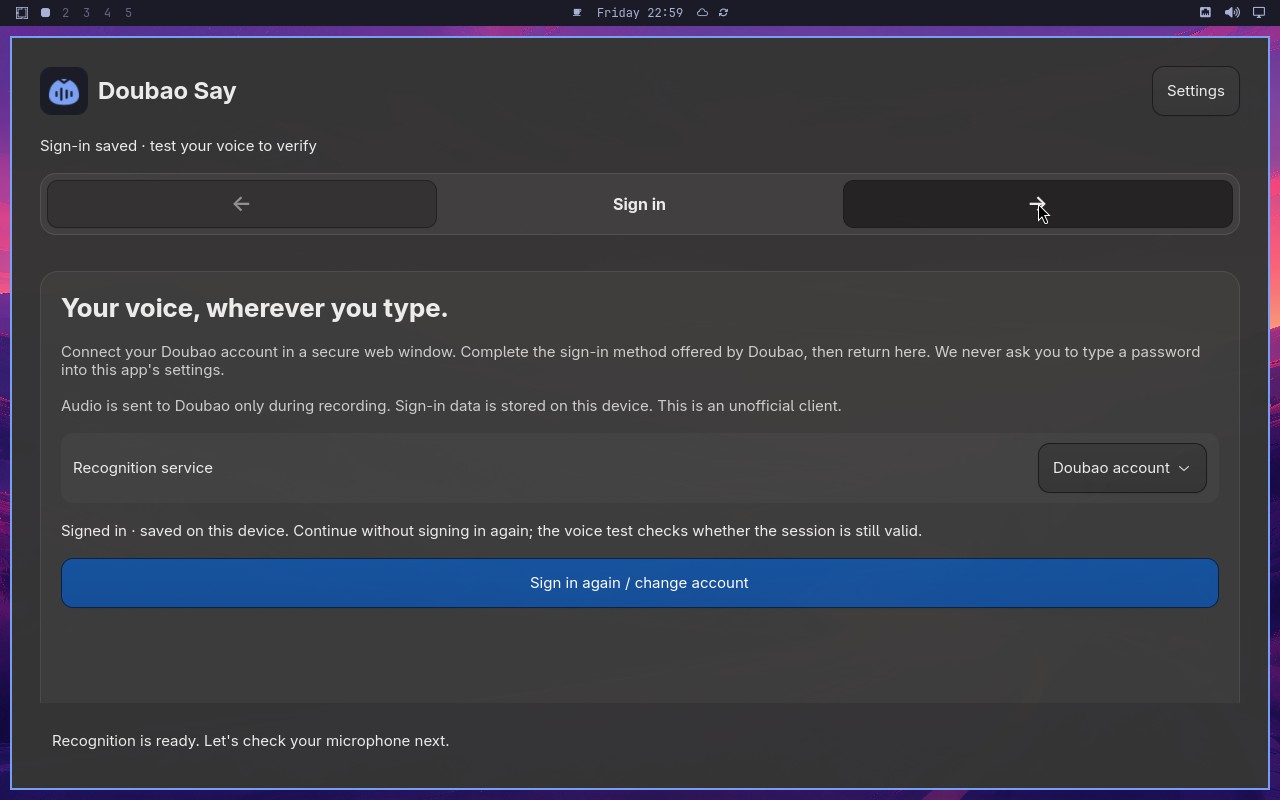 |
AI: The screenshot shows a microphone setup step in what appears to be a voice assistant or speech recognition configuration flow. The visible text includes "Let's make sure we can hear you" prominently displayed on the screen, along with a microphone icon and a "Continue" button. This matches the statement about the Microphone step showing that exact phrase. |
| ✅ Passed | Require an enabled trigger and retain the replacement | 2m17s | 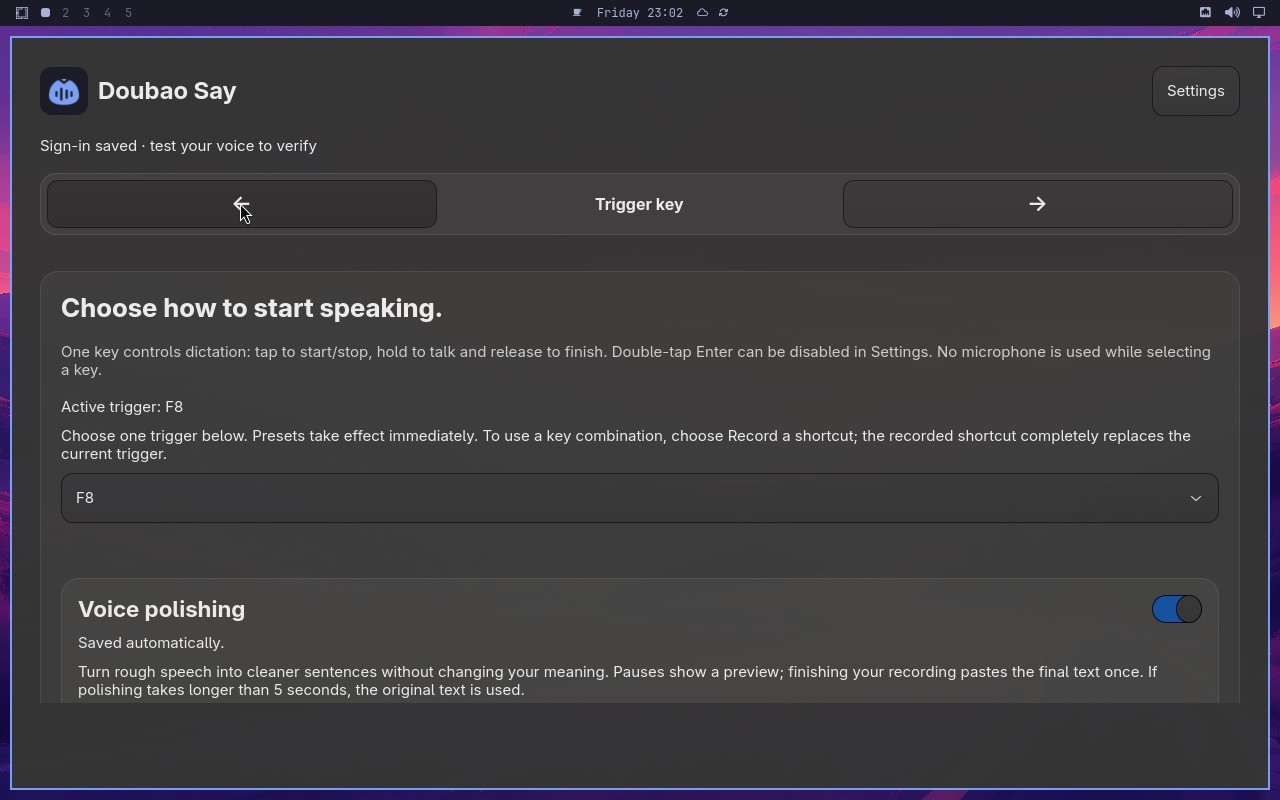 |
AI: Based on the screenshot, I can see a trigger configuration panel. The "Trigger" key step section shows "Active trigger F8" and the trigger dropdown appears to have "F8" selected. The dropdown displays "F8" as the current selection. |
| ✅ Passed | Microphone check gates setup completion | 3m40s | 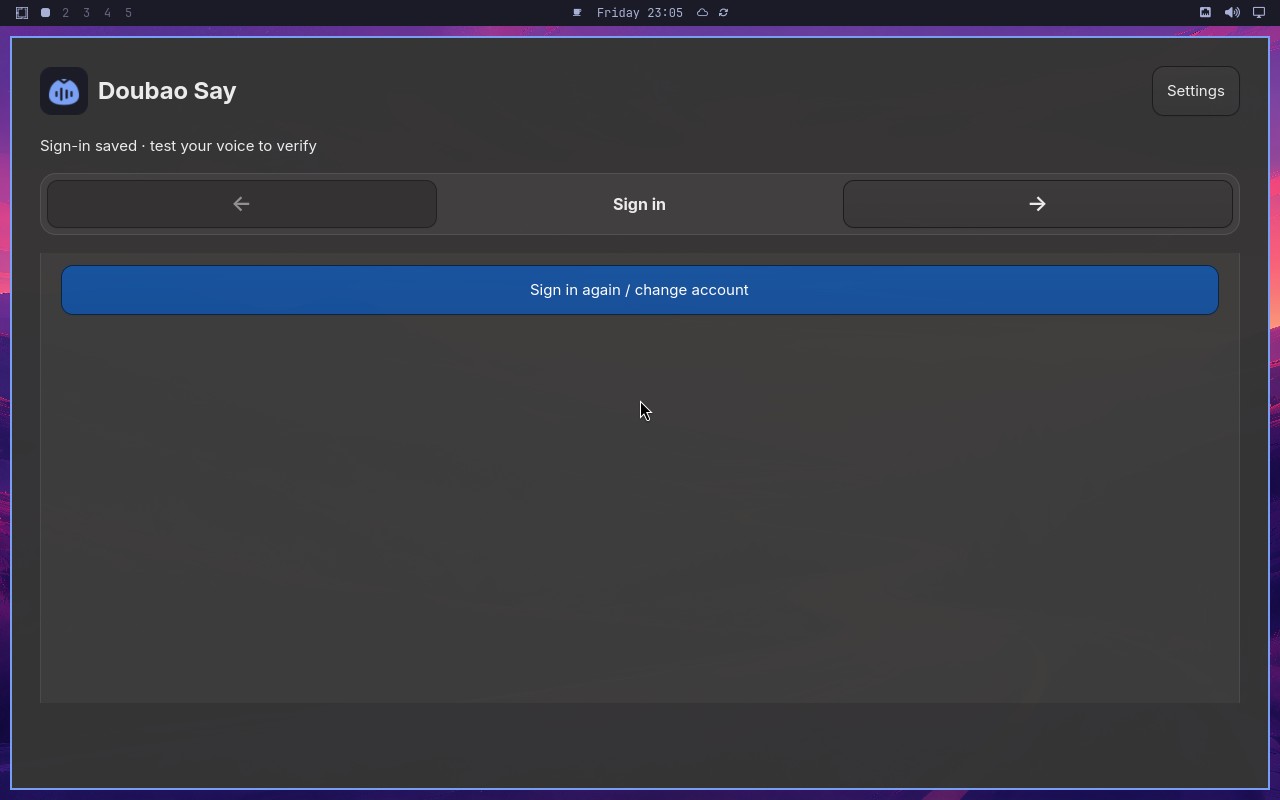 |
AI: The screenshot shows a mobile or desktop setup page with a "Finish setup" button at the bottom. The button appears to be visually distinct, with a filled background color (likely blue or similar), indicating it is in an enabled state. There is no indication of it being grayed out or disabled. The button text is clearly visible and the overall styling suggests it is interactive and ready for use. |
| ✅ Passed | Cancel synthetic dictation without delivering text | 3m20s | 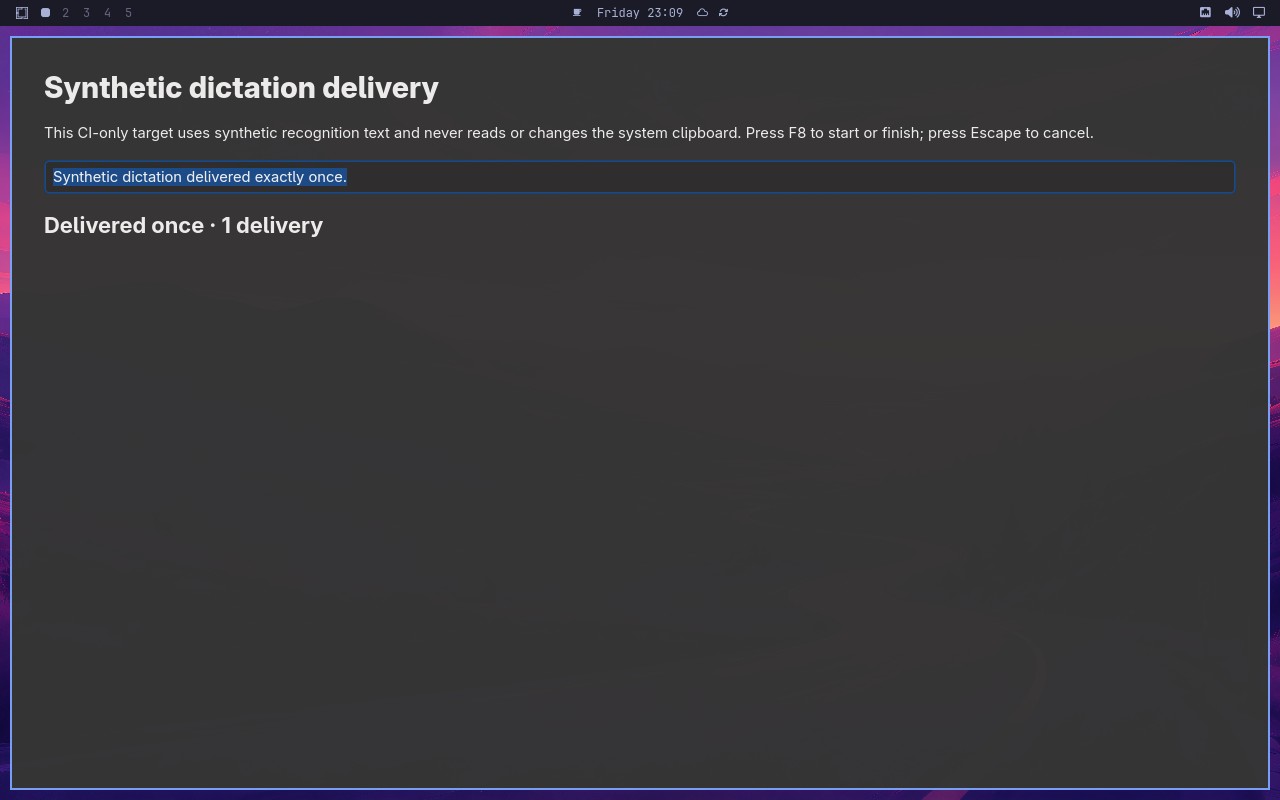 |
AI: The screenshot shows a UI with a "New Attempt" section. There is a text area with a sentence, a "Deliver" button, and a status area. The status area displays "1 delivery" and the sentence appears to be a synthetic sentence. The status indicates exactly one delivery was made. |
Omarchy visual checks
1/1 cases passed
| Result | Case | Duration | Node screenshot | AI response / error |
|---|---|---|---|---|
| ✅ Passed | System menu text and focused row are visible | 49s |  |
AI: The screenshot shows a desktop environment with a vertical bar on the left side of the screen. The bar appears tall and extends from the top to the bottom of the visible area, docked to the left edge. There is no horizontal bar visible across the top or bottom of the desktop. The left vertical bar contains icons and appears to be the Omarchy bar. |