git checkout and git reset Cheatsheet
I never fully understood git checkout and git reset, so last night I set up a repository to experiment. Here are my notes for future reference.
The Three Areas in Git and the Repository
- Working Directory
The area where the files you are currently editing reside.
- Staging Area (Stage Index)
When you run git add
, the corresponding files are added to the staging area.
- History
When you run git commit, the changes in the staging area become a commit record stored in the history.
All of the above happens in the local repository. Only after running git push are the local repository changes (history) pushed to the remote repository.
There is also the concept of HEAD, which by default points to the latest commit on the current branch.
git checkout
- git checkout
Primarily used for switching branches.
- git checkout –
Used to discard changes in the working directory.
The ‘–’ is used to distinguish this from the branch-switching git checkout. Consider the following scenario: there is a branch called ‘master’, and there is also a file called ‘master’ in the current directory. If you want to undo changes to the ‘master’ file in the working directory, running git checkout master would only switch you to the ‘master’ branch.
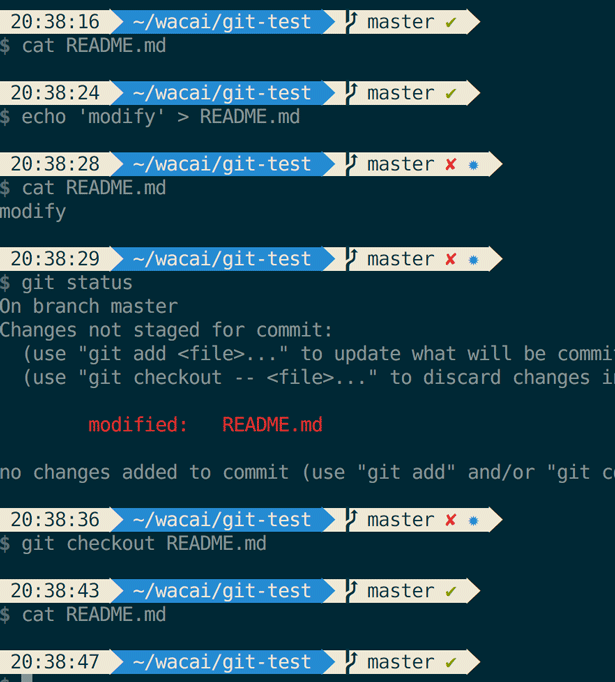
As shown below, after modifying a file and running git status, you get the following prompt: either use git add to stage the modified file, or use git checkout – to discard the changes in the working directory. You can see that after running git checkout –, the README.md file is restored to its state before modification.
git reset
- git reset HEAD
Unstages changes from the staging area, moving them back to the working directory.
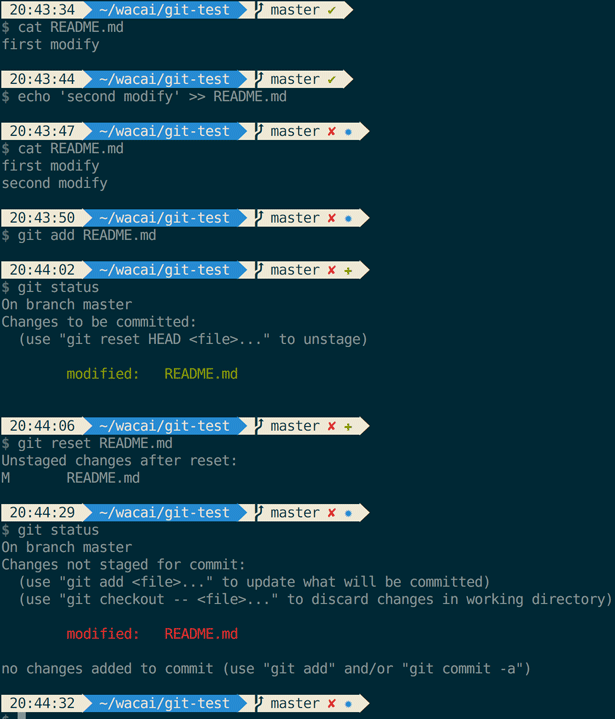
As shown below, after adding ‘second modify’ to the README.md file and staging the change with git add, the terminal suggests using git reset HEAD
HEAD can be omitted, as it defaults to the current commit.
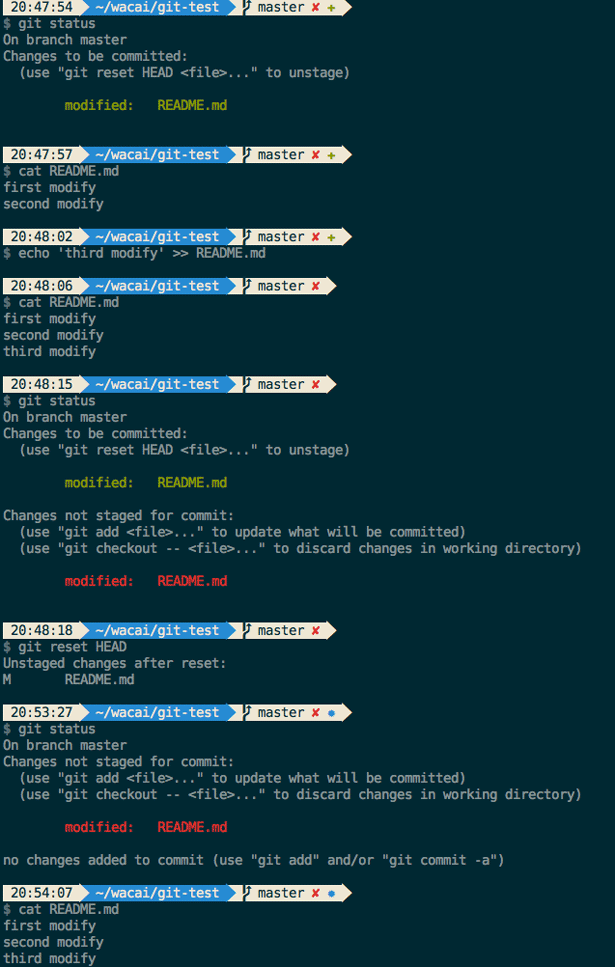
As shown below, continuing to modify README.md by appending ‘third modify’, then checking git status reveals both the original staged change (green text) and the new working directory change (red text). After running git reset HEAD, the terminal shows ‘Unstaged changes after reset’. Checking git status again shows that the staging area is cleared, leaving only the working directory changes. Examining the README.md file in the working directory shows that the previously staged change has been unstaged without affecting the working directory files.
‘Unstaged changes after reset’
What if you run git reset ‘commitID’
git reset –soft/–mixed/–hard
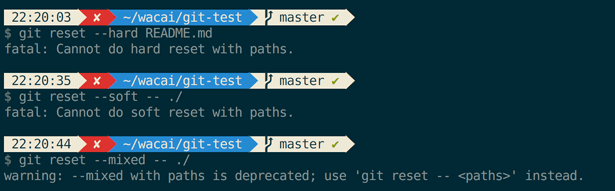
As shown, git reset with flags cannot (or should not) be applied to a specific path, so it is mainly used to operate on commitIDs.
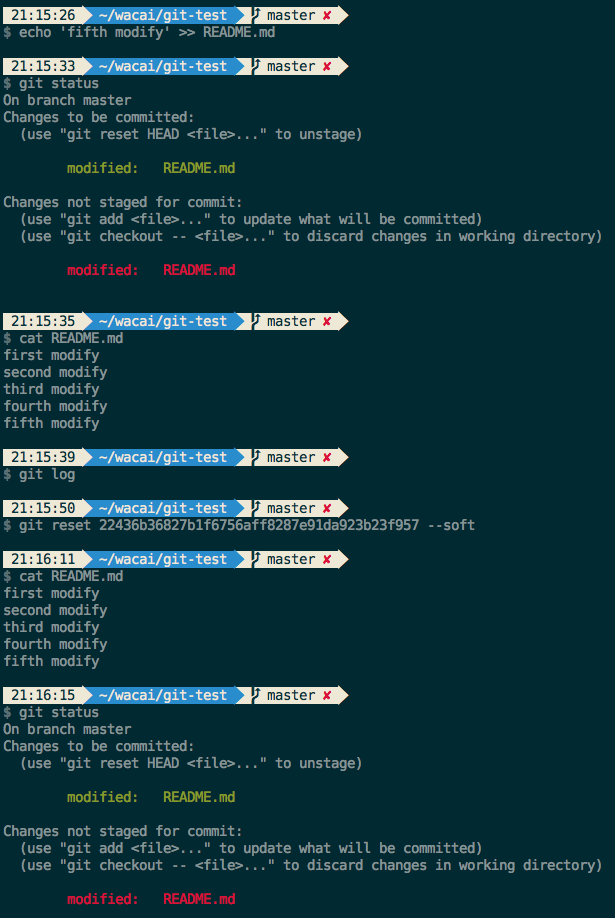
–soft
Resets the HEAD pointer to the specified commitID while keeping both the staging area and working directory unchanged.
As shown, after resetting the HEAD pointer to two commits prior, the current branch is behind the remote branch by two commits. Checking the staging area (git diff –cached) and the working directory (cat README.md) shows that both areas remain unchanged compared to before the git reset –soft.
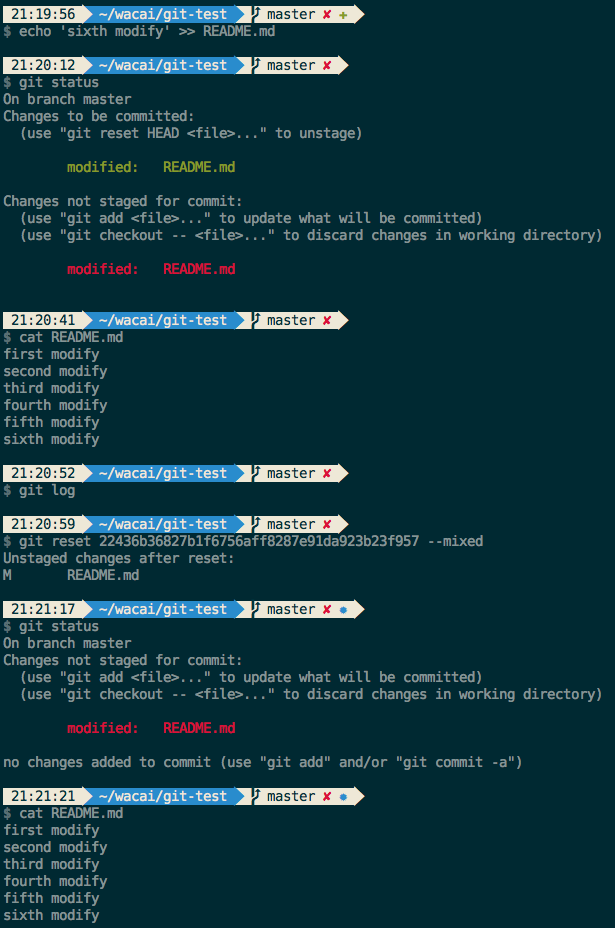
–mixed
Resets the HEAD pointer to the specified commitID while clearing the staging area, but leaving the working directory unchanged.
As shown, the behavior here differs from what is described in Understanding git reset soft, hard, mixed regarding –mixed, as it does not ‘reset the index to match HEAD’.
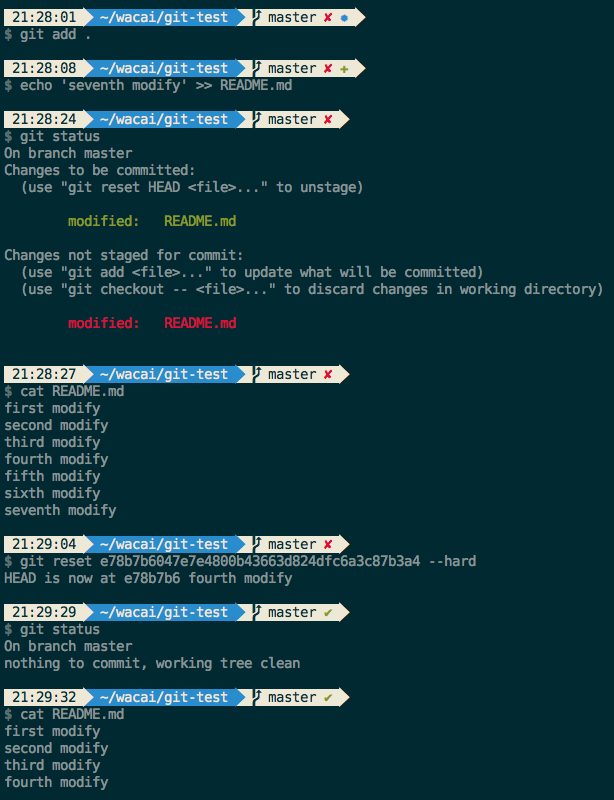
–hard
Resets the HEAD pointer to the specified commitID while resetting both the staging area and working directory to match the specified commitID.
As shown, after a –hard reset, both the staging area and working directory are cleared. At this point, you can choose git pull to sync with the remote branch, or use git push –force to forcefully update the remote branch’s commit history to match the local repository. However, it is generally recommended to use git revert, which rolls back while preserving the commit history.
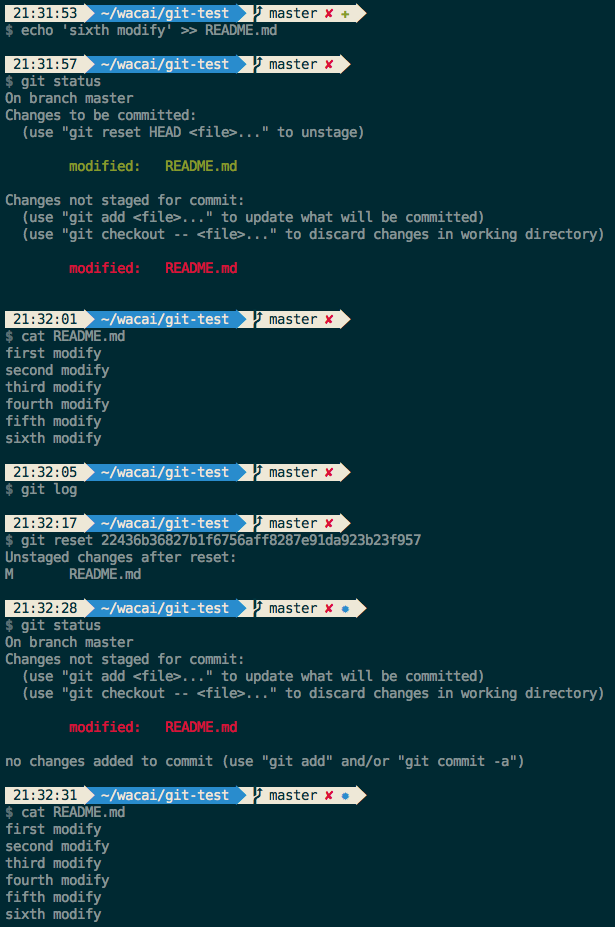
Which One Is the Default?
Some articles say –mixed is the default, while others say –soft is the default.
As shown, the default is –mixed.
git checkout and git reset Cheatsheet
http://quanru.github.io/2016/10/04/git checkout and git reset Cheatsheet